import json

with open("ecliptica_run_2026-07-21_20-31-44.jsonl", encoding="utf-8") as f:
    meta = json.loads(f.readline())
    events = [json.loads(line) for line in f]

damage = [e for e in events if e["type"] == "damage"]
print(meta["run"]["damage"], len(damage))
A combat-log damage meter and HUD overlay built for the VRChat world ECLIPTICA.
It reads the log VRChat writes in real time, tracks your damage, DPS, damage taken, deaths and
aggro target, and draws it on top of the game window.
Damage dealt, 10s DPS, run average DPS, damage taken, max crit, deaths and how much stronger you have got since phase 0 — all recorded automatically (Reading the dashboard)
HUD overlays
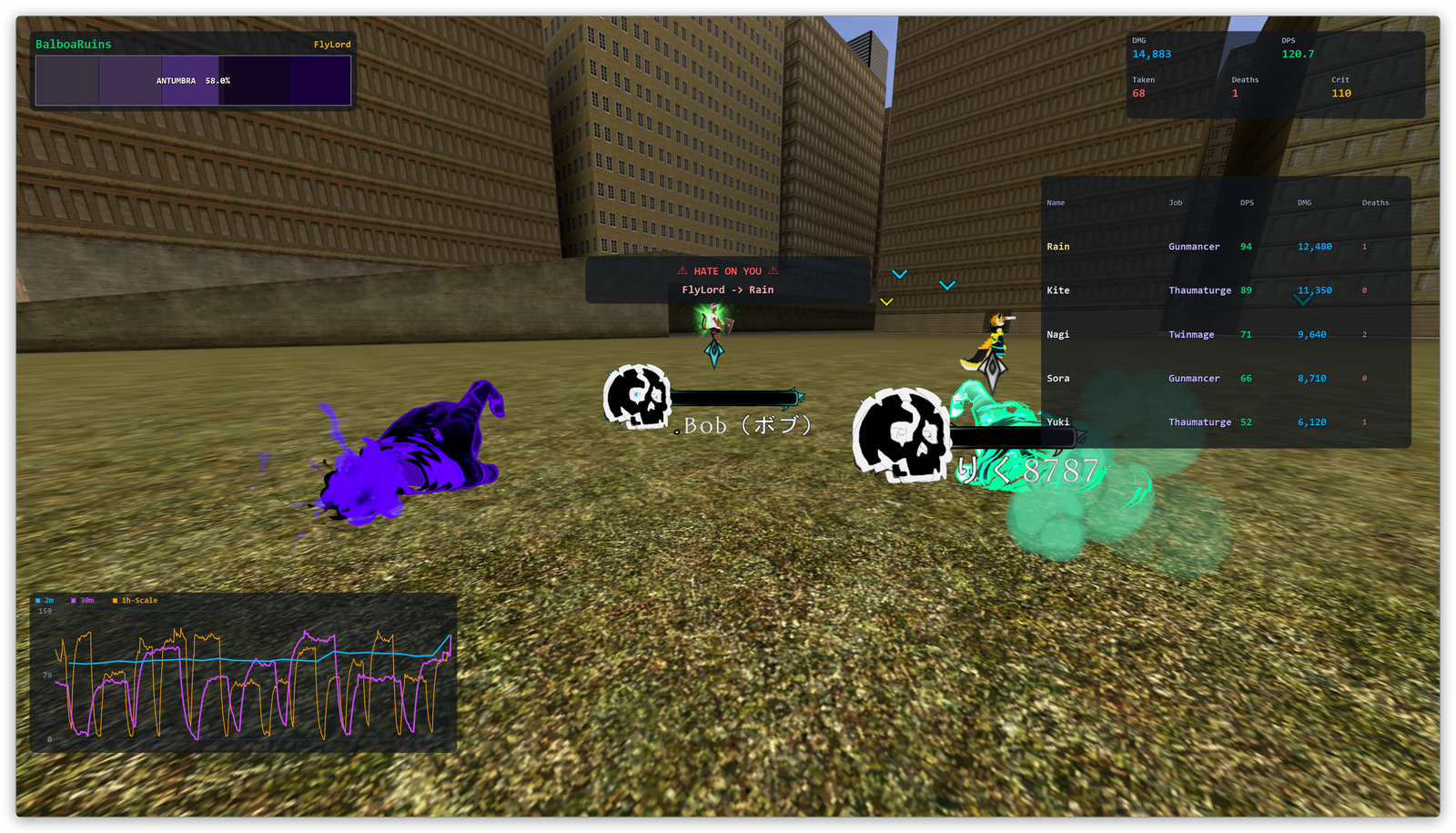
Eight translucent, click-through panels on top of the game (HUD overlays)
The same panels in VR
The HUD as SteamVR overlays, visible inside the headset and placeable with your controller (VR overlays)
Tokens and mobs
Tokens picked up per wave, tokens still on the field (Tokens), and every enemy that spawned (Reading the dashboard)
Target alert sound
A sound the moment something targets you, from any file you like including MP3 (Target alert sound)
Party sharing
Share DPS live with everyone on the same room ID (trial period — Party sharing)
Records and export
A JSONL record written automatically at the end of every session, plus a manual full export (Session records / Exporting a run)
It never touches VRChat itself. It only reads a log file — no input injection, no memory access.
Read this first: some of what ECLIPTICA reports only reaches the log file when VRChat is
launched with debug logging enabled, so a few features stay dark without it.
See VRChat setup.
Desktop and VR both work. In desktop mode the HUD windows sit on top of the game window; in VR
the same panels are drawn inside the headset through SteamVR (VR overlays), so you are not
limited to desktop mode any more.
Get it from the BOOTH shop and extract the ZIP
anywhere you can write to (Desktop, Documents, …). There is no installer.
Run it from the extracted folder — launching it from inside the ZIP does not work.
Double-click Ecliptica ACT.exe. Windows SmartScreen may warn on first launch — choose
More info → Run anyway.
Settings and session records are created under %APPDATA%\dev.rtail\eact\
(Settings reference).
To uninstall, delete the extracted folder. To also remove your settings and saved sessions, delete
the %APPDATA%\dev.rtail\eact\ folder.
Worth doing. The app runs without this, but some of its features will not — part of what
ECLIPTICA reports only reaches the log file when VRChat is launched with debug logging enabled.
1. Set the launch options
On Steam: right-click VRChat in your library → Properties → Launch Options, and paste this in.
If you launch VRChat from a shortcut instead, append it to the end of the shortcut's Target field.
--enable-udon-debug-logging
Or let the app do it.[▶ Launch VRChat] at the top left of the main window starts VRChat
through Steam with that option already applied and takes you straight to ECLIPTICA. If Steam
cannot be found, the status bar says so — set the option by hand in that case.
2. Turn logging up
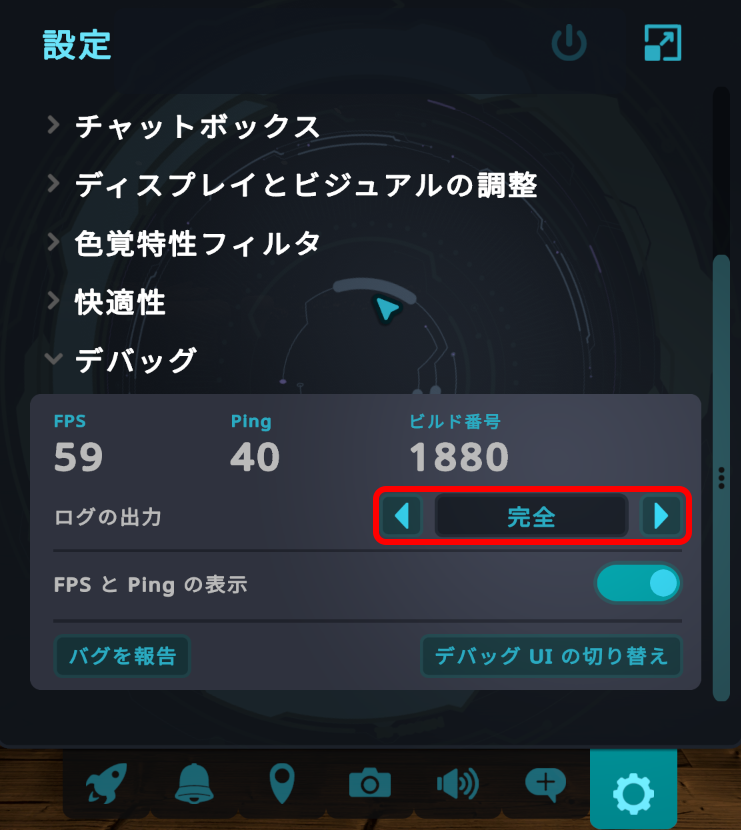
On top of the launch options, raise VRChat's own log level. Open the VRChat menu, go to
Settings → Debug, and enable (maximise) the logging options.
Start VRChat first when you can. The app fills in your user name from the log, which only works
if the log already exists.
Start VRChat and enter ECLIPTICA.
The app picks up your name from the log and fills it in as the target user. If VRChat is not
running, that field stays empty.
Starting VRChat from the app's [▶ Launch VRChat] button works too
(VRChat setup).
Run Ecliptica ACT.exe.
When Watching: output_log_....txt appears at the top right, log watching is live.
Fight. Numbers start moving as soon as you deal damage, and the HUD follows.
Starting the app mid-game is fine. On launch it reads back through the log and replays the
session you are currently in, using the timestamps written there — so if you dive for 30 minutes
before starting the app, those 30 minutes show up as they happened. It never reaches further back
than the current session, so a previous instance cannot bleed into your numbers.
If VRChat restarts and creates a new log file, the app switches to it automatically.
On startup the app checks whether a newer version exists. If there is one, a banner appears at the
top of the main window with a [Download] button that opens the download page, and
[Dismiss] to hide it for this run.
It only notifies. Nothing is downloaded or installed for you — updating means getting the new
ZIP and extracting it yourself.
If you are already up to date, or the check fails, the startup check stays silent.
To check on demand, use [Check for Updates] on the settings window's General tab. That
one reports the result in the status bar either way.
The version you are running is shown at the bottom right of the main window.
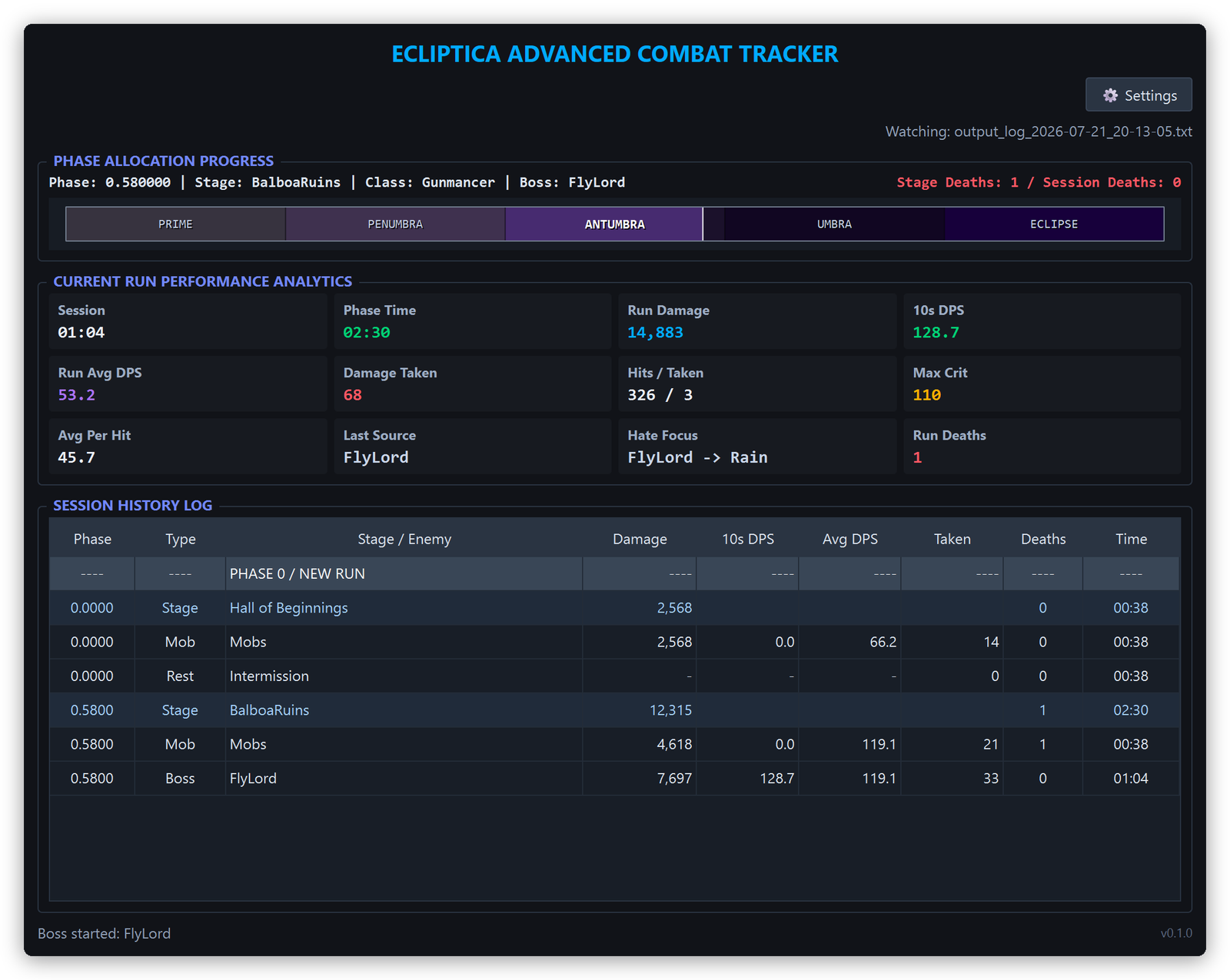
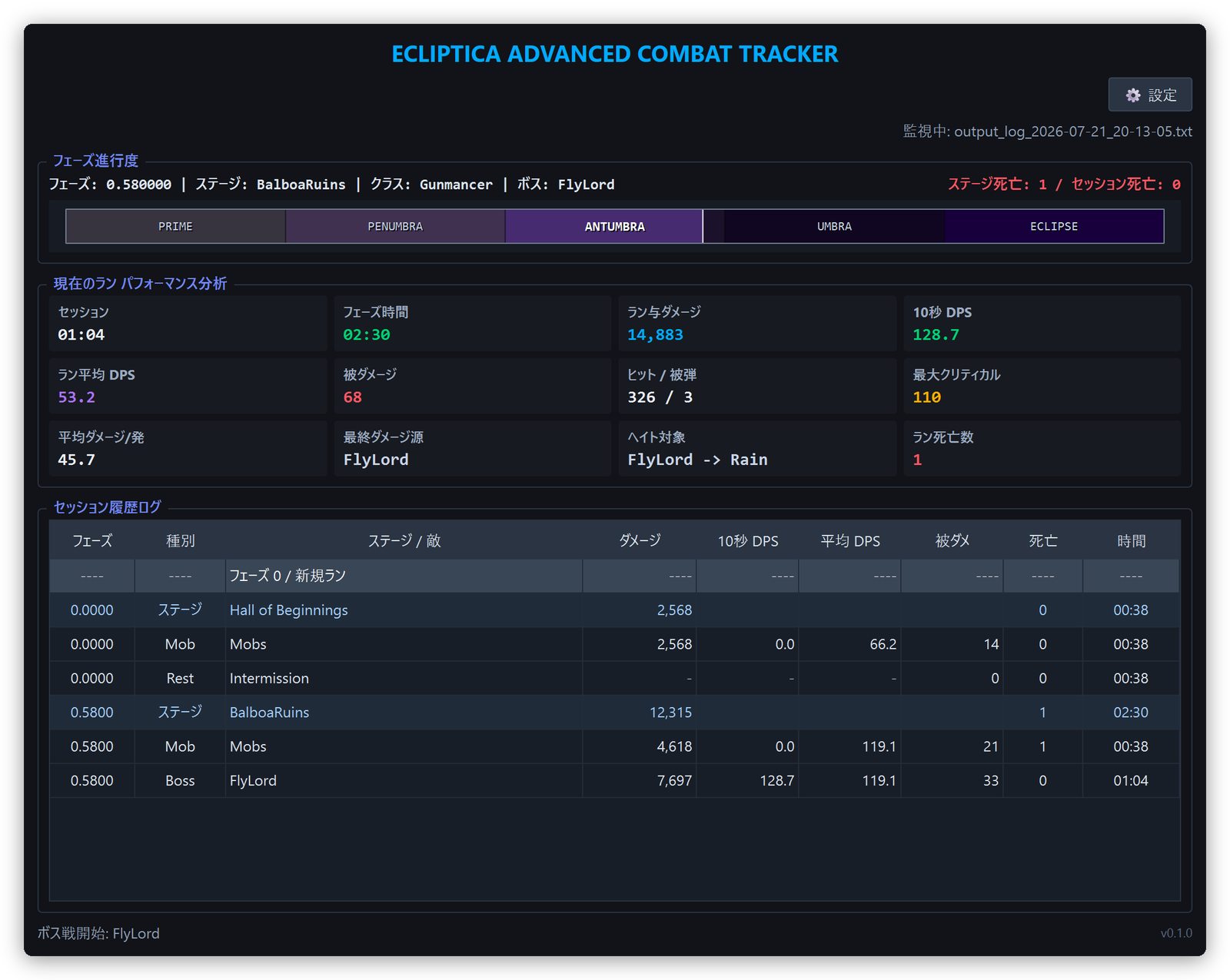
The main window is a header plus four sections, top to bottom.
Areas of the dashboard
The header holds [▶ Launch VRChat] (VRChat setup), [⚙ Settings], and the
name of the log being watched.
Phase progress
Shows the current phase value, stage name and class, plus the boss name during a boss fight.
On the right, "Stage deaths / Session deaths" are deaths in the current stage and in the
current fight respectively.
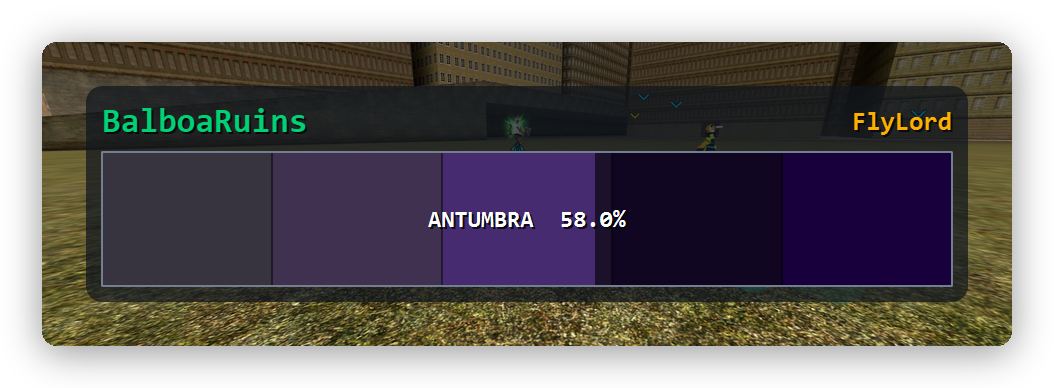
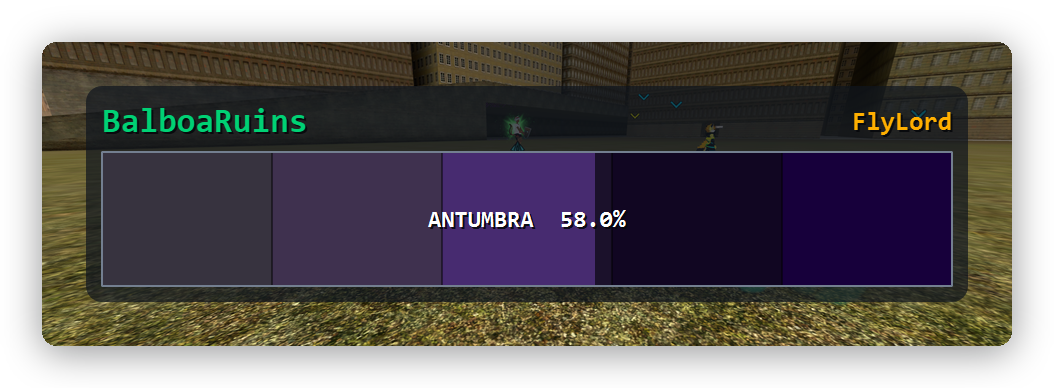
The phase bar — reached segments are drawn in full colour
How much heavier your swings are than in this run's phase 0 (Growth vs phase 0)
Last Source
Whatever hit you most recently
Hate Focus
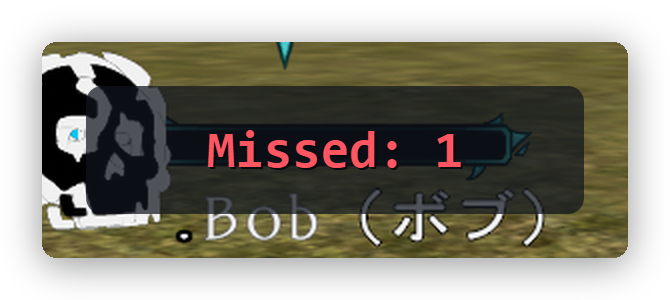
The most recent enemy -> player handover (work in progress — see HUD overlays)
Run Deaths
Deaths this run
Tokens (Wave)
Tokens picked up in this wave / tokens that spawned in it (Tokens)
Tokens Held
Tokens you are currently carrying (collected − spent)
Tokens (Run)
Run totals, plus how many were missed
Cards with a definition worth knowing have a tooltip — hover over them in the app.
Spawned mobs
Every enemy that spawned in this session, counted by name, with the ones you already killed
included. alive N on the right is how many of them are still on the field.
Phase: filters the list down to one phase segment, so you can ask "what came out during
UMBRA?" after the fact.
Bosses are not listed here.
The list resets when you return to the lobby, not when a run resets.
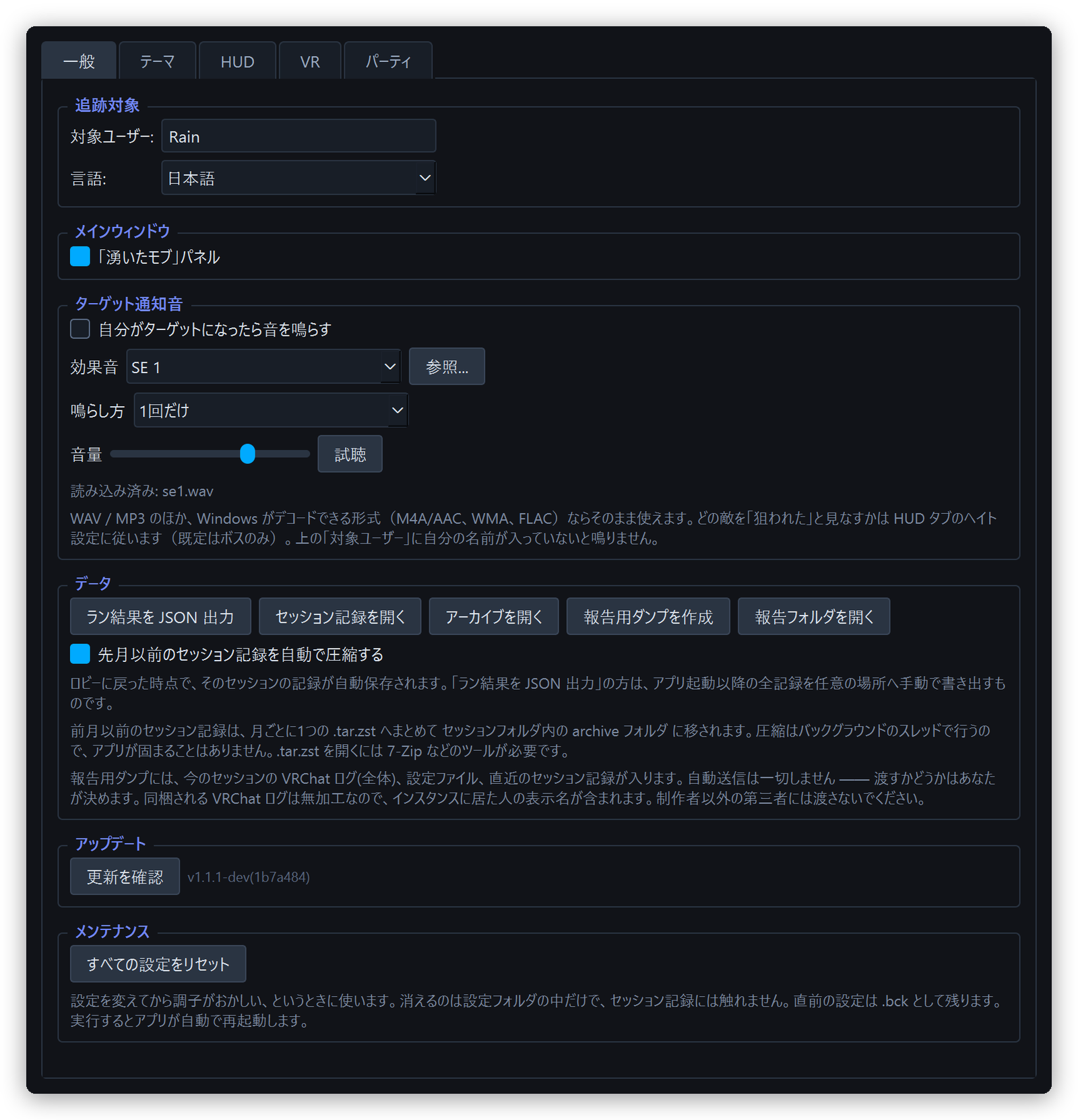
The whole section can be hidden with [Spawned Mobs Panel] on the settings window's
General tab.
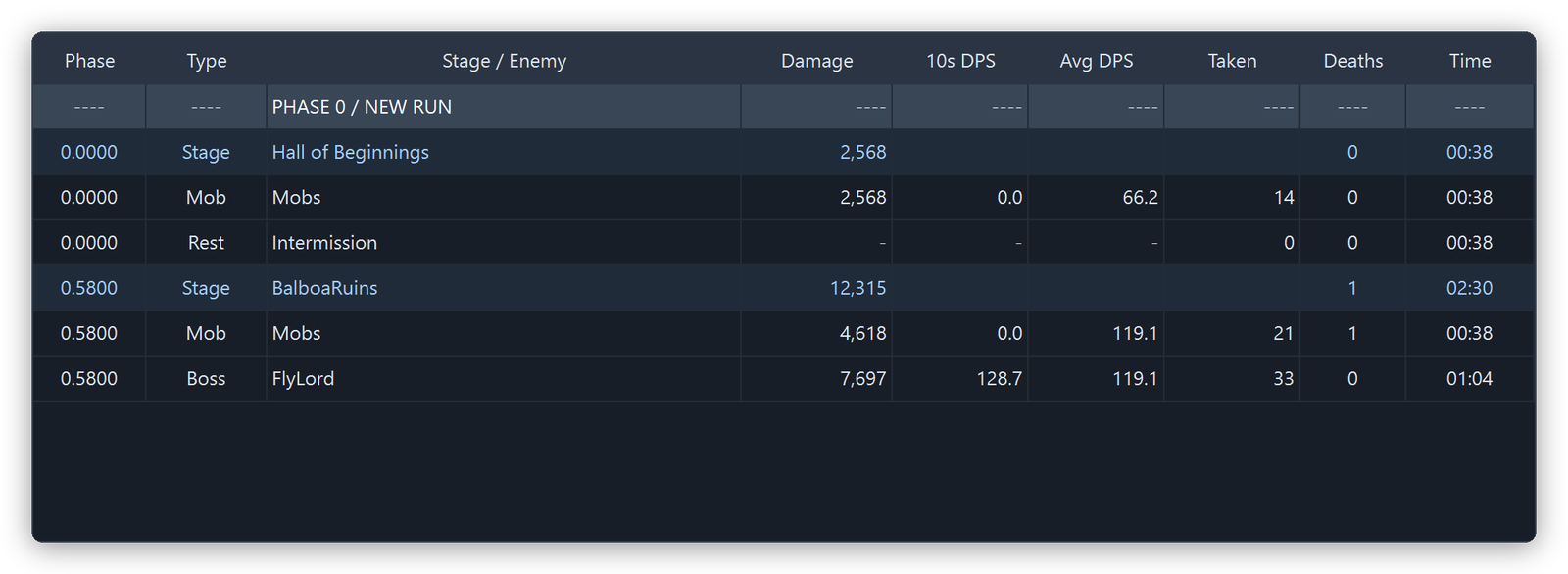
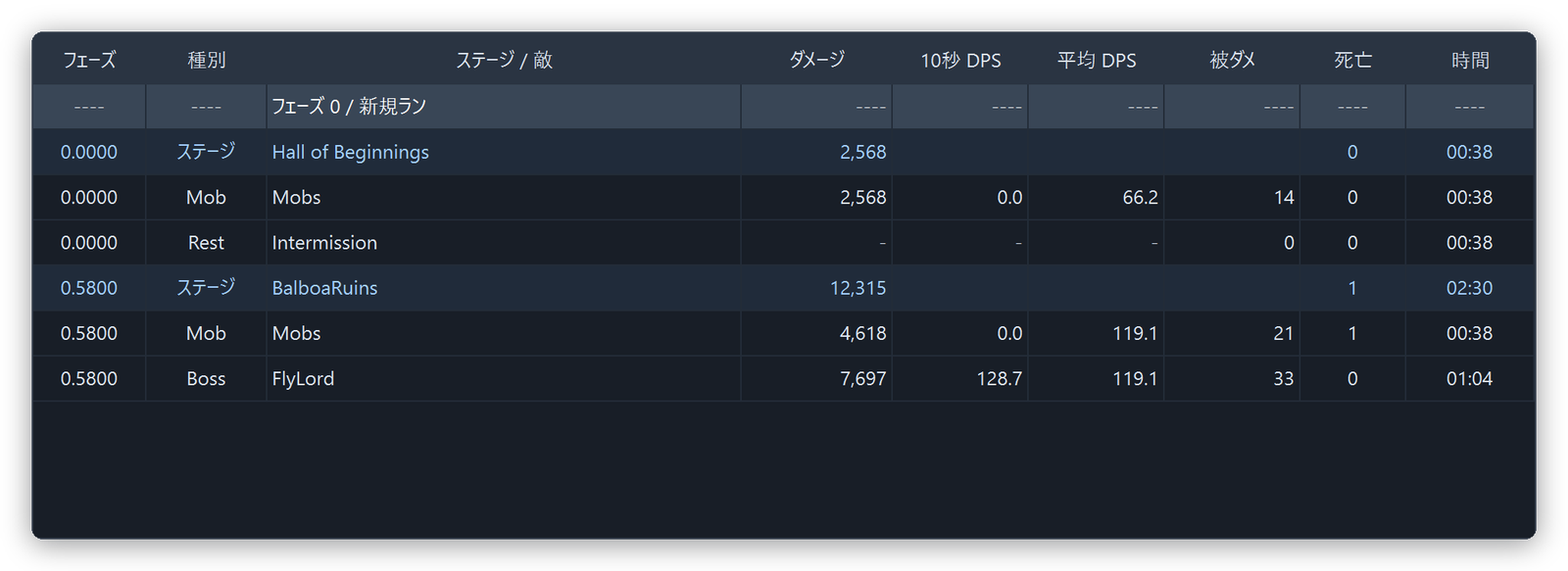
Session history log
Stages and fights stack up in the order they happened. A Phase 0 / new run divider row marks
where a new run began.
Progress through ECLIPTICA is a phase value from 0.0 to 1.0, which the app splits into five
named segments.
Segment
Phase value
PRIME
0.0 – 0.2
PENUMBRA
0.2 – 0.4
ANTUMBRA
0.4 – 0.6
UMBRA
0.6 – 0.8
ECLIPSE
0.8 – 1.0
On the phase bar, the reached portion is drawn in the segment's colour and the unreached portion
in a darkened version of it. The compact HUD bar and the main-window bar use the same fill.
How a "run" is delimited
The app treats the moment the phase value returns to 0 as the start of a new run.
When a new run starts, these reset:
Run totals (damage, damage taken, deaths, max crit, hit counts)
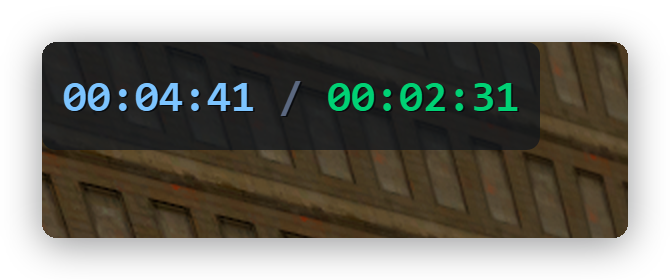
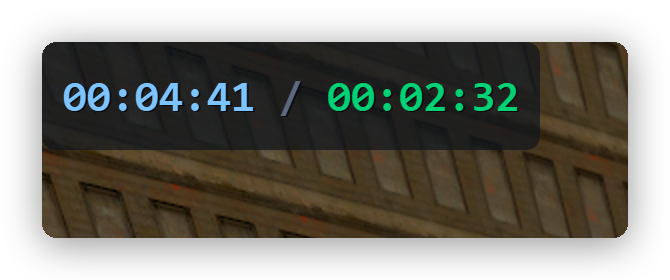
The Session / Phase / Checkpoint card holds three separate timers, each in its own colour. The
Timer HUD shows the first two (HUD overlays).
Clock
Counts
Session
Time spent in the world since you last left the lobby. It starts at the first stage after a lobby and stops the moment you return to the lobby
Phase
Time in the current stage
Checkpoint
Time in the current fight (Mob / Boss / Rest)
Time spent waiting in the lobby is not counted, so the session clock answers "how long has this
dive been running".
In the lobby the clocks freeze rather than blank out. Phase and checkpoint keep showing the last
stage and last fight, so you can still read the numbers of the run that just ended. Dealing damage
again starts a fresh run.
Work in progress. This is still an experimental metric — how it is calculated may change in a
future version.
This card answers "am I actually getting stronger this run?" — it compares total damage per swing
in the phase you are in against the same figure from this run's phase 0.
While you are standing in the baseline phase, the card shows the baseline value itself
(baseline 50.1).
Anywhere else it shows x1.56 (+56%) 50.1 — the ratio, the difference as a percentage, and the
current per-swing figure.
It shows - until phase 0 has been observed and you have landed a hit. Joining a run partway
means there is no baseline, so it stays - for that run.
Damage over time (poison, burn) counts towards the damage but not towards the swing count, so
getting better at applying it never drags the number down. The Avg Per Hit card counts the same
way.
Tokens are tracked separately from the combat stats, and reset only when you return to the
lobby — not when a run resets at phase 0.
Card
Meaning
Tokens (Wave)
Picked up in this wave / spawned in it. It turns red once the boss fight starts while some are still on the field, and the Token HUD then says how many are left
Tokens Held
What you are carrying: collected − spent. Cleared on returning to the lobby
Tokens (Run)
Run totals, plus missed. A wave only counts as missed once it reaches its intermission, since tokens can still be picked up until then
Tokens Held shows - if you joined the run partway. The balance is collected − spent, and the
world hands out starting tokens to people who join mid-run, so it cannot be reconstructed unless the
app watched the run from its start. Per-wave pickups and misses are unaffected. Returning to the
lobby and starting from phase 0 brings the balance back.
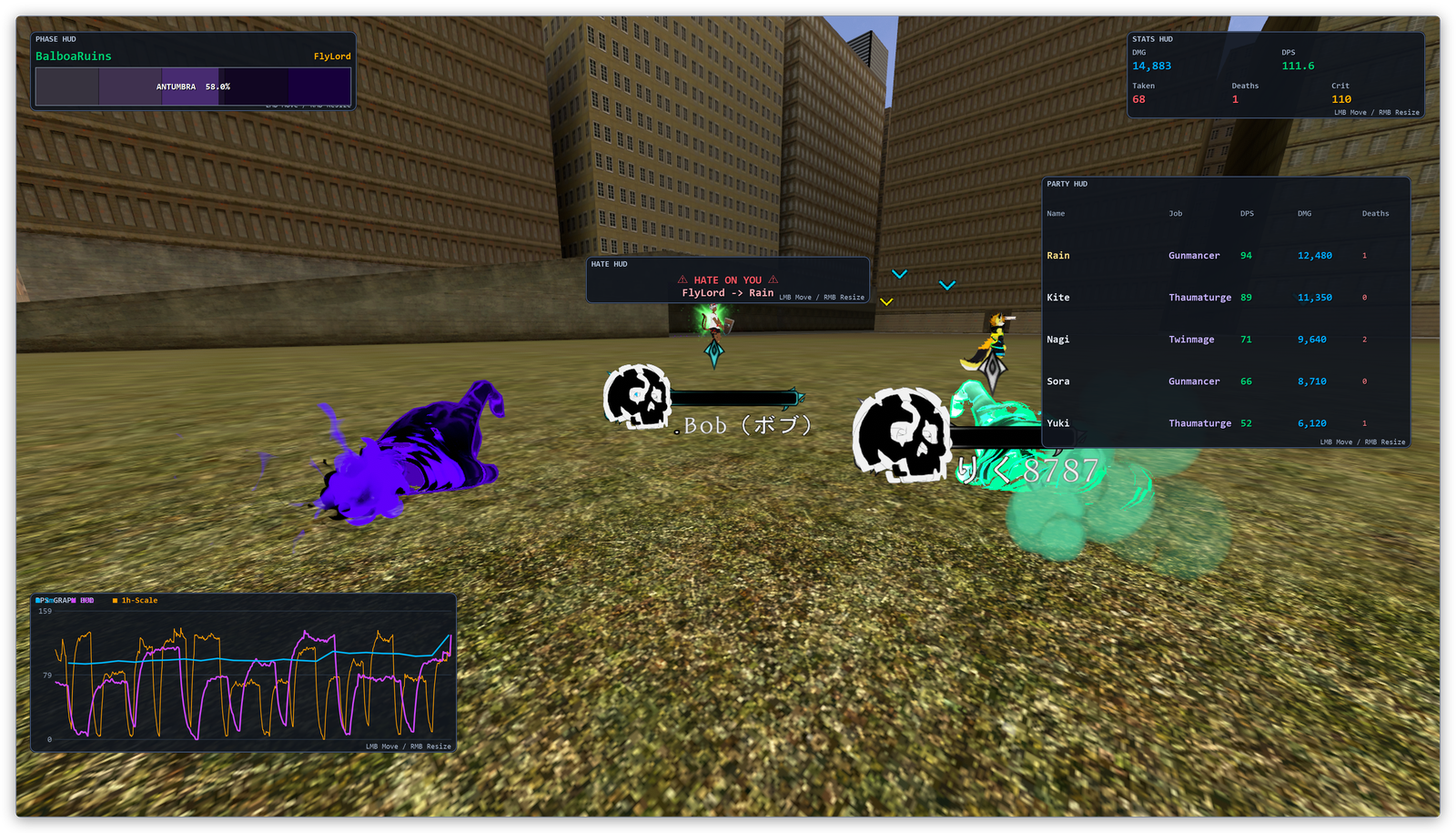
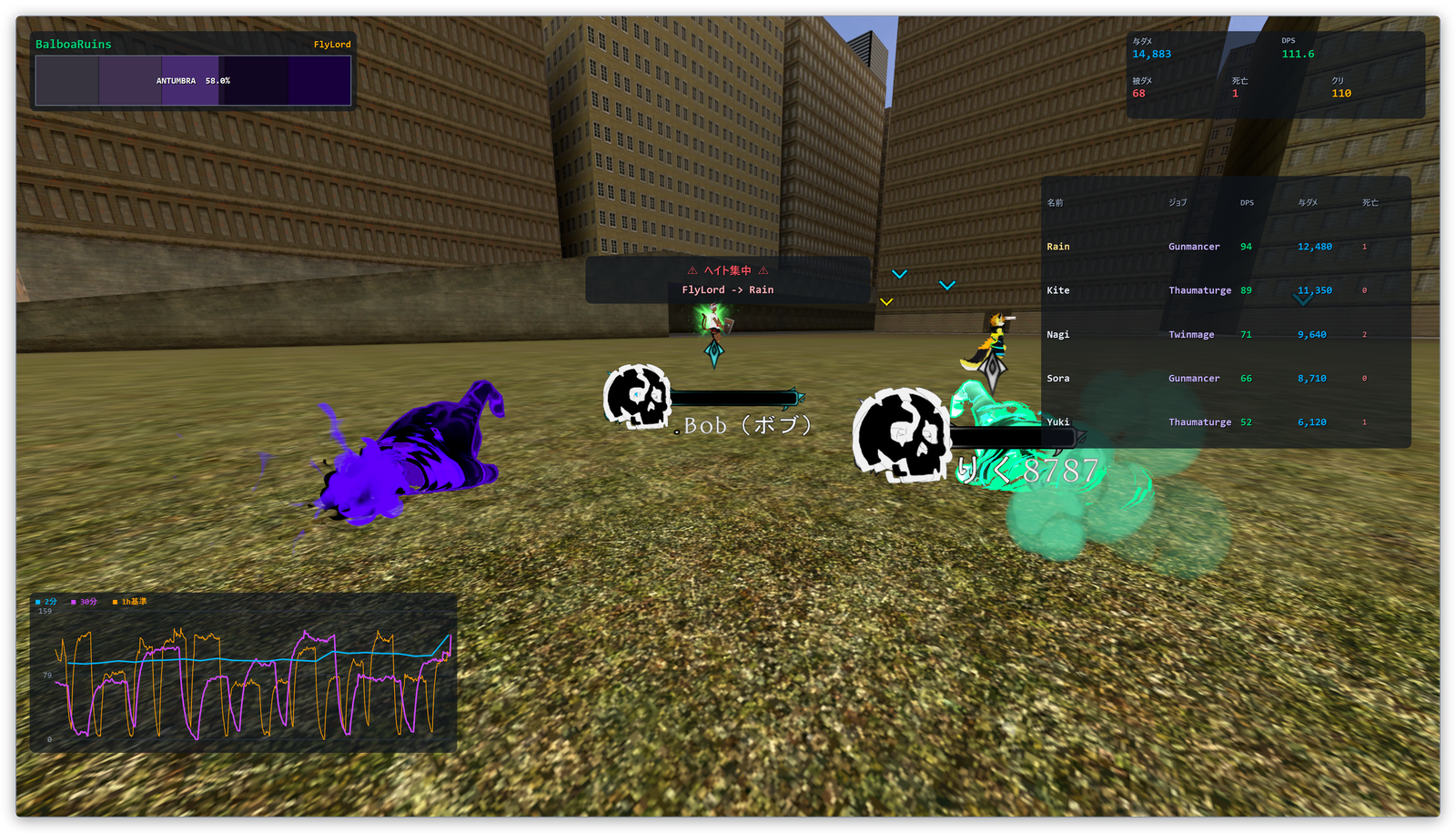
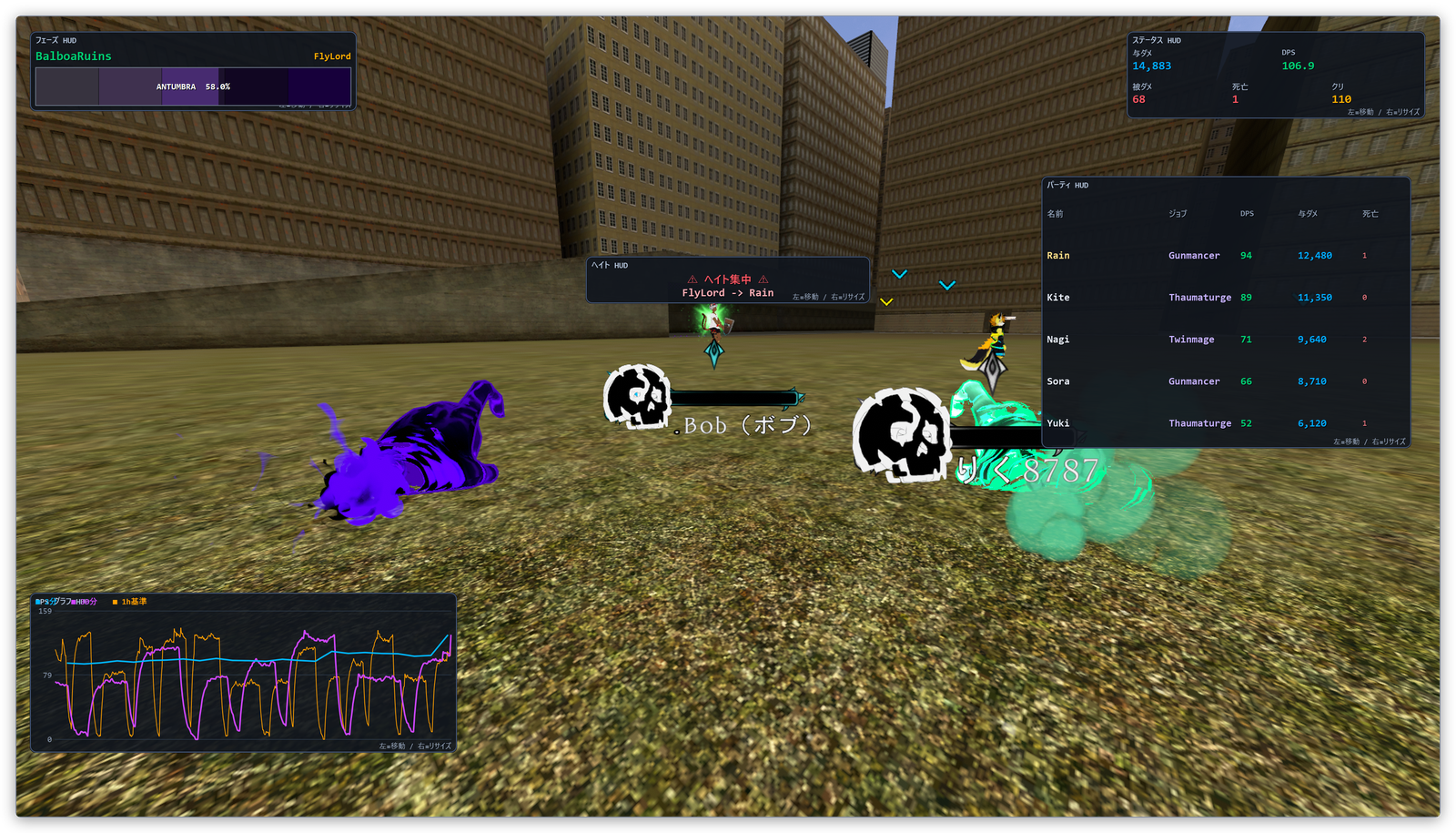
The HUD is eight independent windows: always on top, translucent, and click-through — outside of
setup mode your mouse passes straight through to VRChat.
Default HUD placement, shown over a 1920×1080 screen
Stage name, boss name, compact phase bar with segment name and %
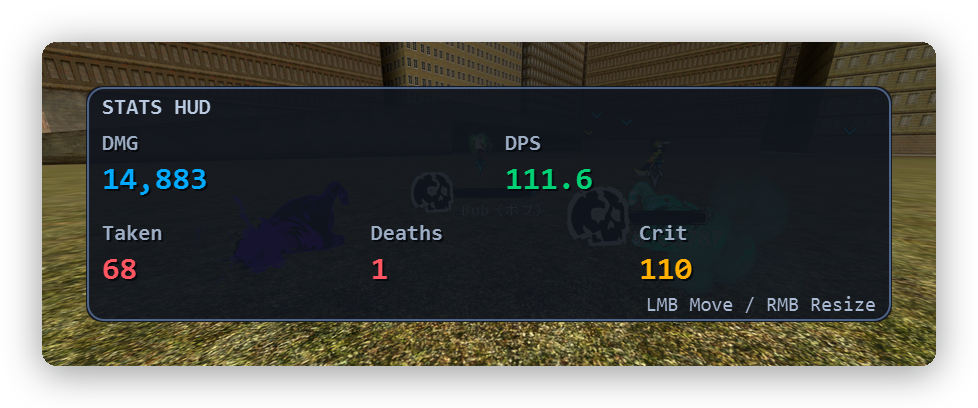
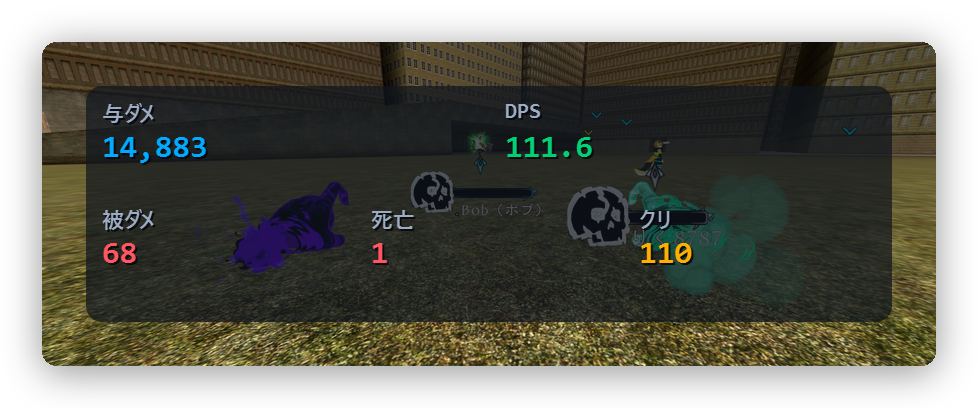
Stats HUD
Top right
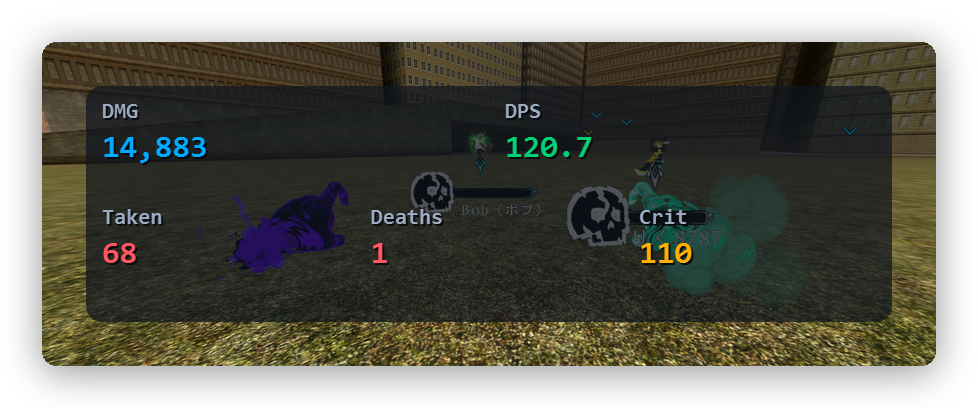
DMG / DPS / Taken / Deaths / Crit
Party HUD
Right, under the Stats panel
DPS table for everyone in your room (hidden by default)
Hate HUD
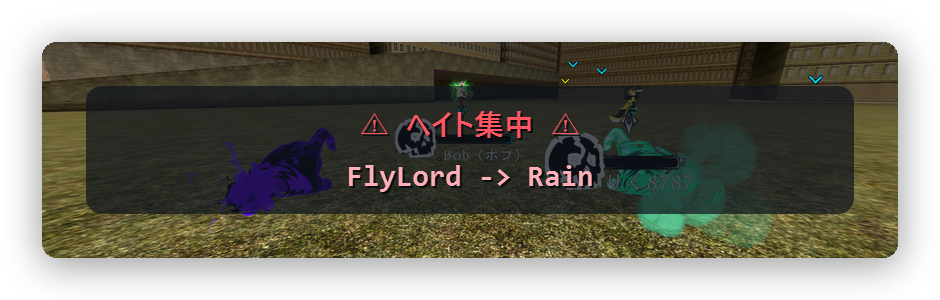
Centre of the screen
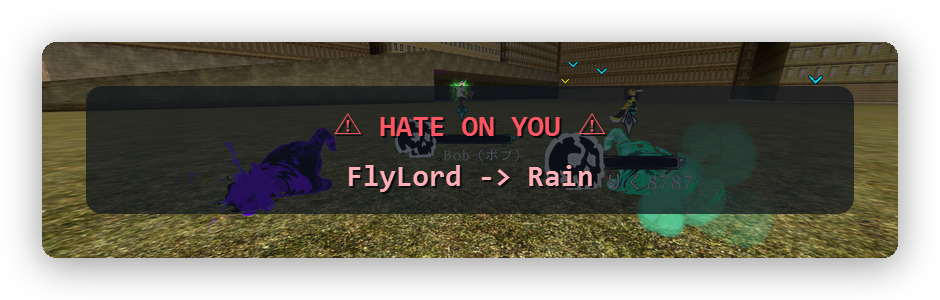
Current aggro target, with a red warning when it is on you (work in progress)
Token HUD
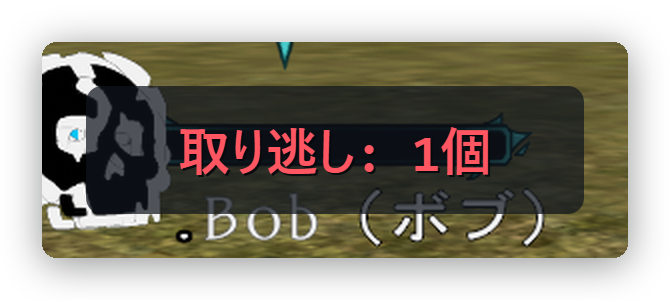
Centre, under the Hate panel
How many tokens are still on the field — only when some are
Spawned Mobs HUD
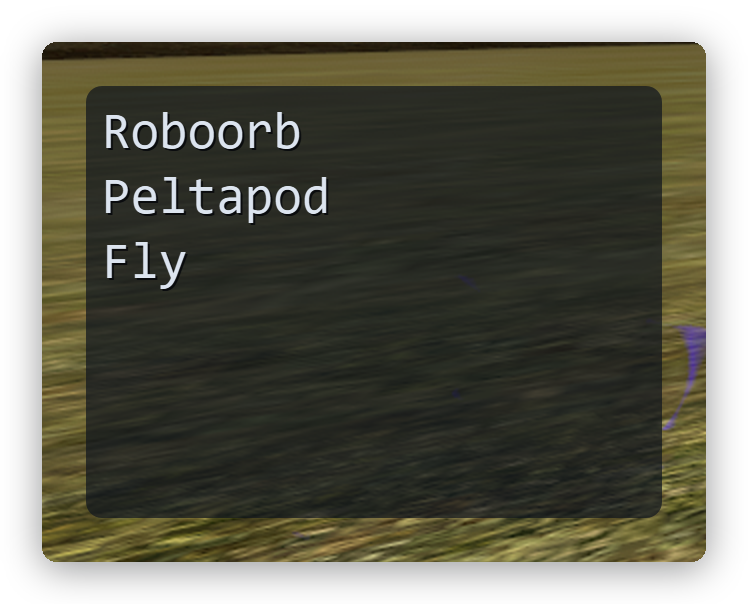
Left, about halfway down
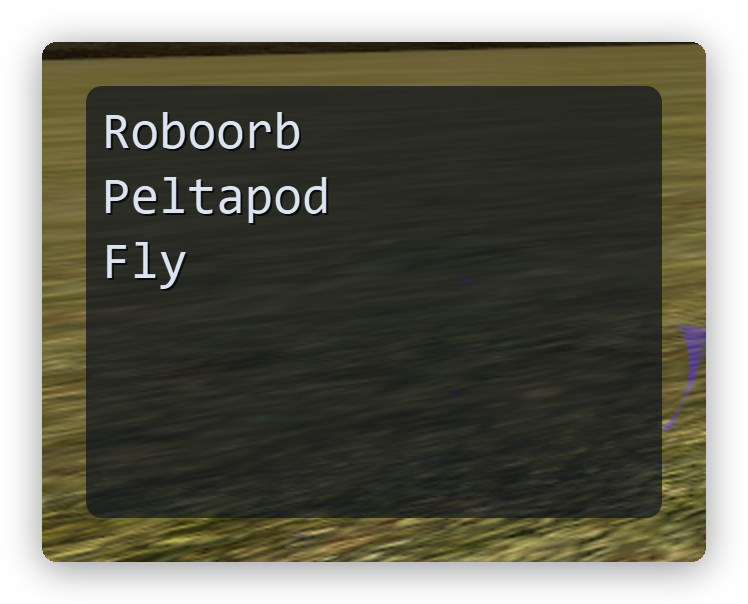
The enemies currently alive, one per line
DPS graph HUD
Bottom right
DPS over three different time scales
The Token HUD is invisible during normal play. It has nothing to say while a wave is going
cleanly, so it draws nothing at all — not even a background. It appears only once tokens have
demonstrably been left behind, to tell you how many (Tokens).
Aggro display is a work in progress. It infers the target from where an enemy's network
ownership was handed to, which does not always match the real target. Treat it as a hint rather
than the truth — how it is derived may change.
Showing and hiding
Everything is in the settings window (⚙ Settings, top right of the main window), which is split
into four tabs: General, HUD, VR and Party. The HUD lives on the HUD tab.
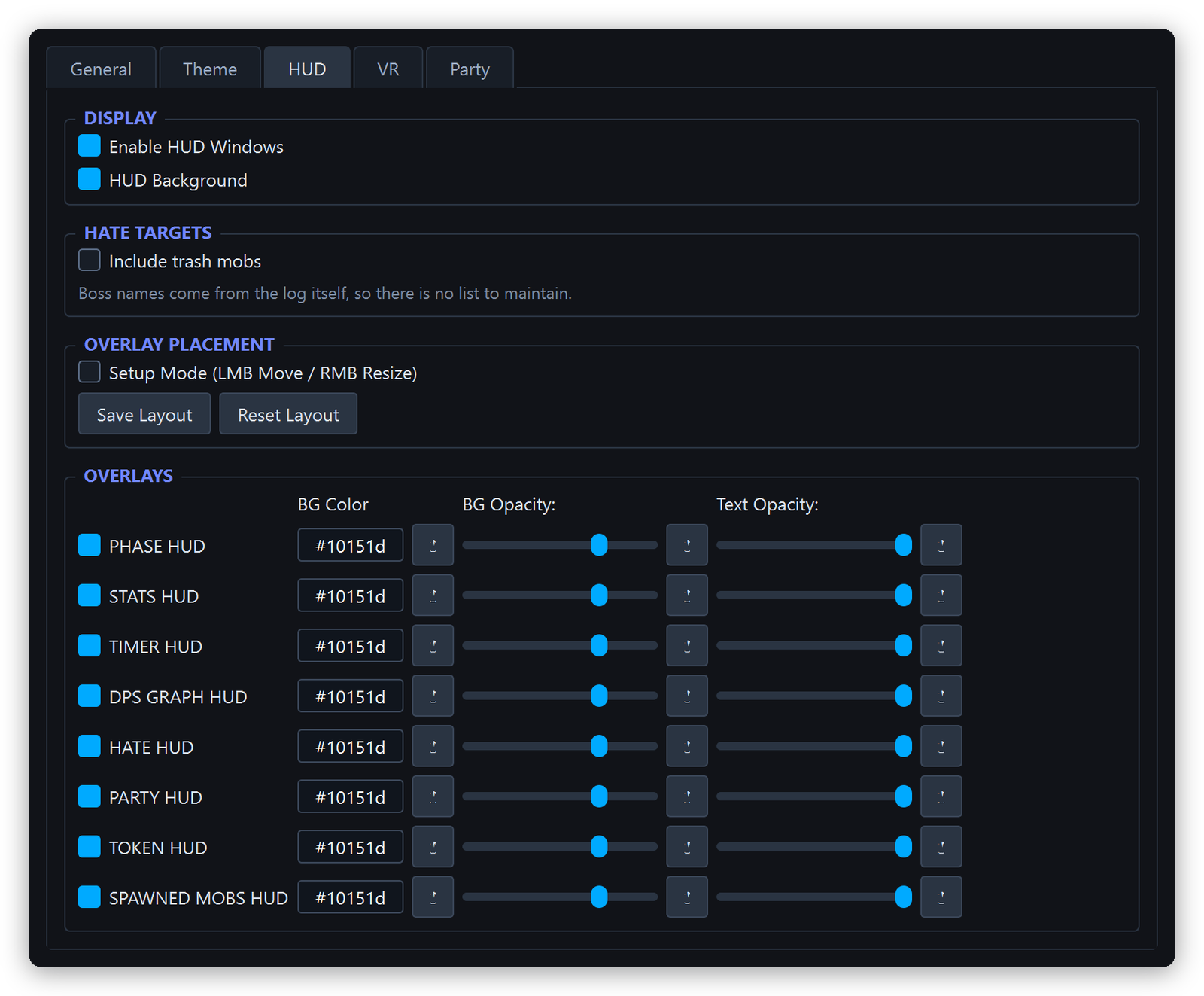
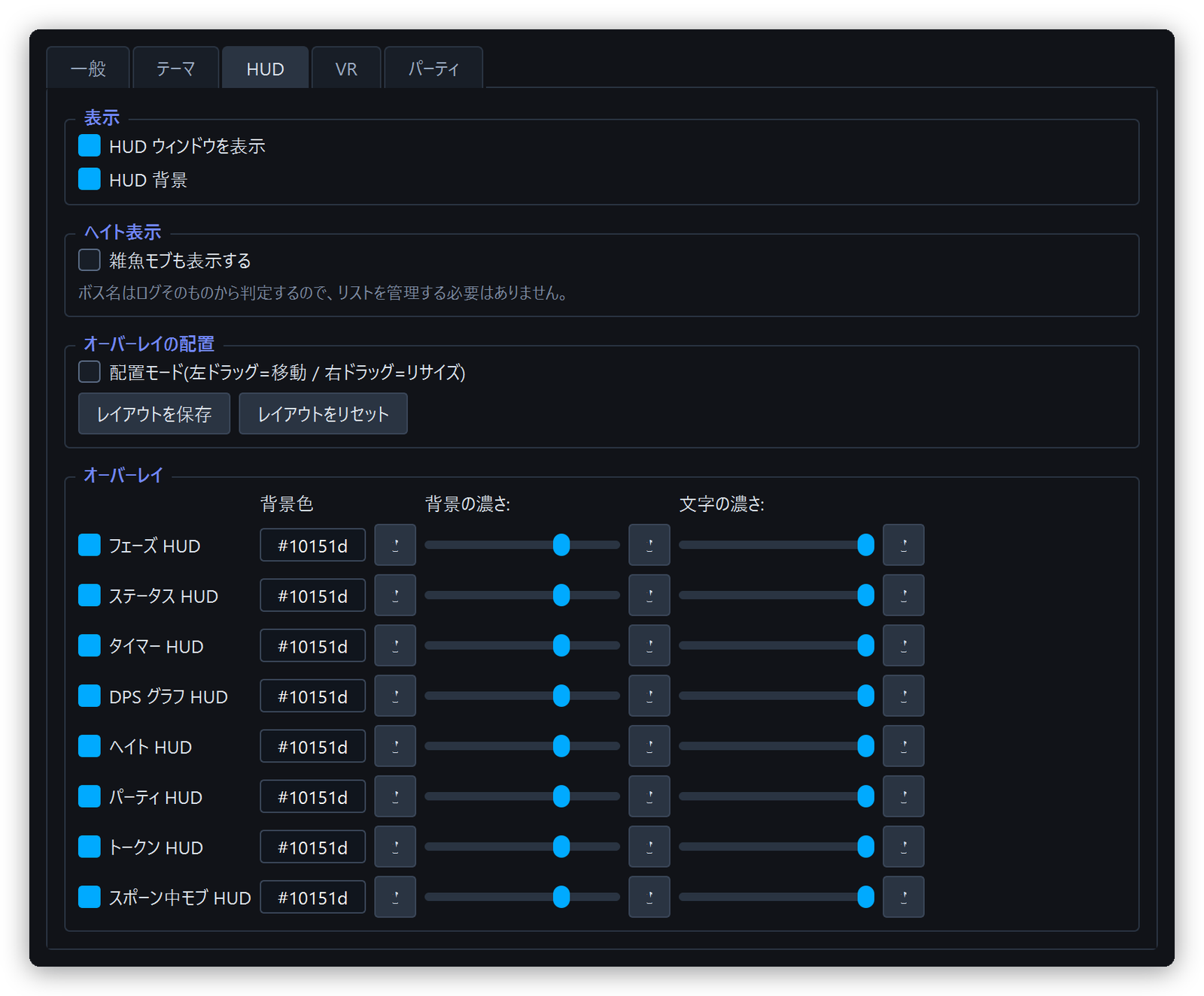
Settings window — HUD tab
Enable HUD Windows — shows or hides every HUD at once
HUD Background — whether to draw the rounded background panel
The Overlays rows — one row per panel, with four controls each:
Control
What it does
Checkbox
Whether the panel appears on the desktop. Only the Party HUD is off by default
BG Color
The panel's background colour, picked per panel
BG Opacity
Background opacity, 0–100%
Text Opacity
How solid the text and graph lines are, 10–100%
Background and text opacity are independent, so you can pair a faint background with readable
text — 25% background and 45% text, for example. The ↺ button next to each control resets just
that one back to the default.
Whether a panel appears inside the headset is a separate checkbox in the same position on the
VR tab, so a panel can be VR-only or desktop-only (VR overlays).
With the background off, only the text floats — useful when you want to obscure as little of the
game as possible.
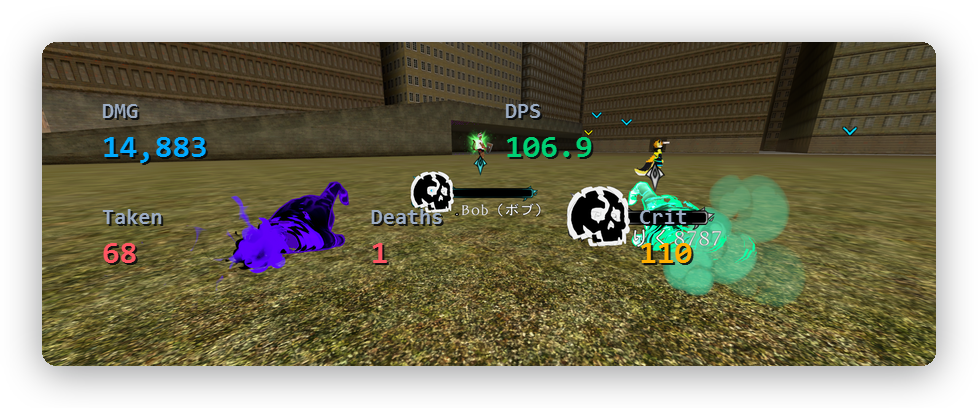
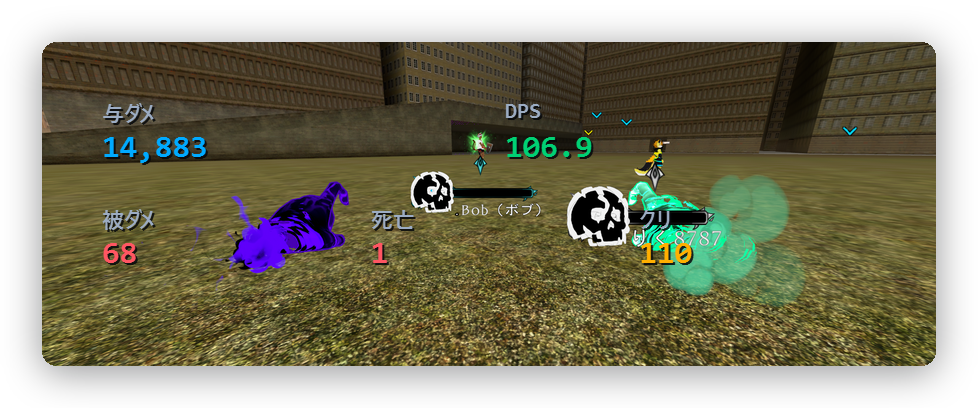
Stats HUD with the background off
Which enemies the Hate panel follows
By default the Hate panel follows only the boss of the current wave, so ownership changes on
trash mobs never flicker through it.
Tick [Include trash mobs] under HATE TARGETS on the HUD tab to follow ownership of regular
enemies as well. Turning it back off drops the non-boss entries again.
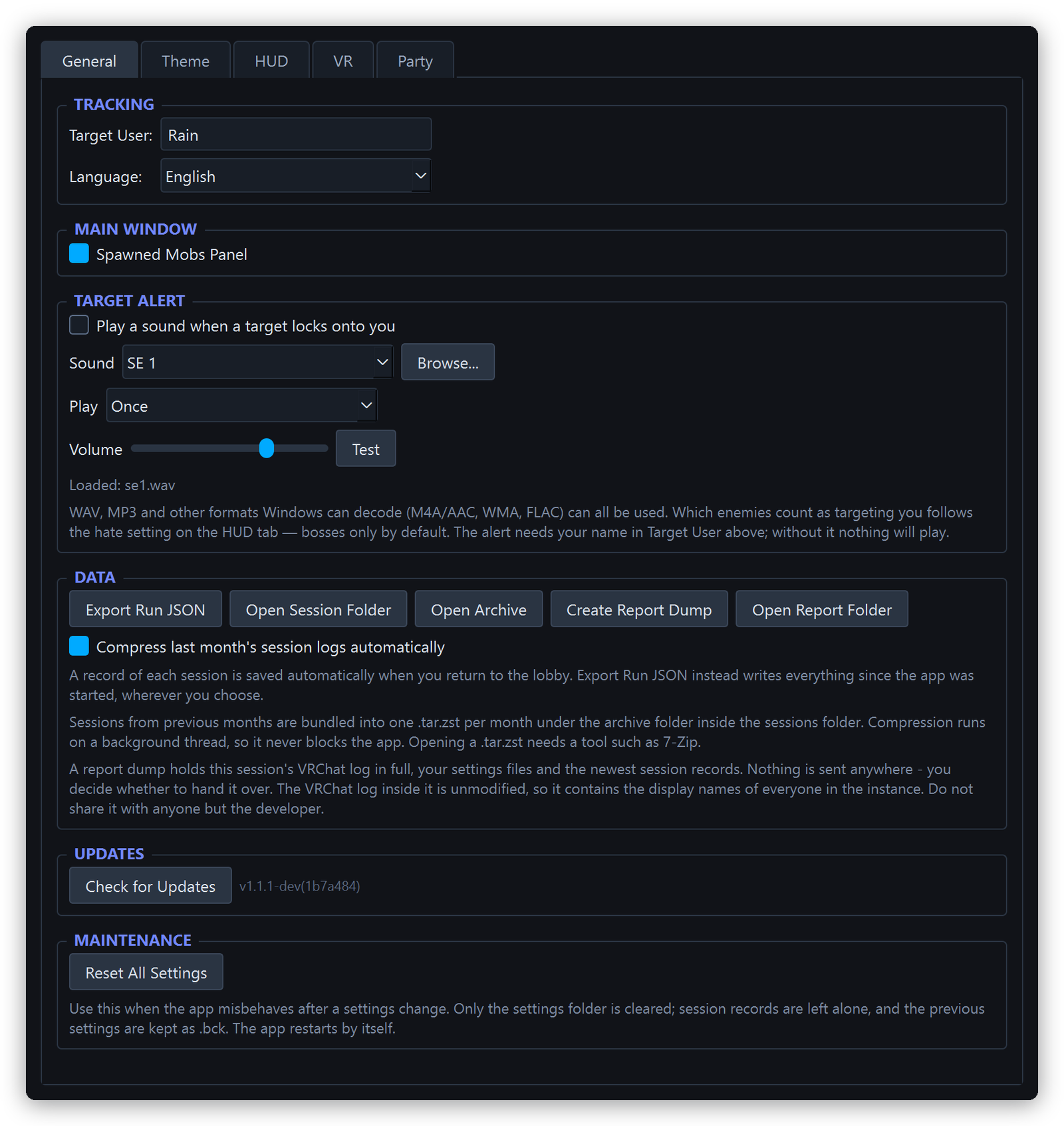
A sound plays the moment something targets you, so you notice even when you are not looking at the
screen — pair it with the Hate panel. It is configured under TARGET ALERT on the General tab
of the settings window (Settings reference).
Item
What it does
Play a sound when a target locks onto you
Turns the whole feature on and off
Sound
The bundled SE 1–SE 3, or your own file via [Custom file...] + [Browse...]
Play
Once / Repeat while targeted
Volume
0–100%. [Test] plays it right there
Two conditions have to hold for it to play.
Your name must be in Target User — the first field on the General tab, normally filled in from
the log at startup. With it empty there is no way to tell who was targeted, so nothing plays.
Which enemies count as targeting you follows the hate setting on the HUD tab. That is bosses
only by default, so enable [Include trash mobs] (Which enemies the Hate panel
follows) if you want trash mobs to trigger the alert too.
Supported formats
WAV and MP3, plus any other format Windows can decode (M4A/AAC, WMA, FLAC), can be used as-is.
24-bit and 32-bit float WAV files need no conversion either. There is no length limit — a
several-minute track is fine.
Short sounds loop without a seam. A short alert set to Repeat while targeted comes back
around with no gap.
A long source is played as-is, without conversion. Its loop point carries a slight pause, but for
an alert sound you will rarely still be targeted when it gets there.
If a file cannot be loaded, the reason appears right there in the settings window (an unsupported
format, say). The previous sound is never silently kept.
While a long source is selected, the app keeps that file open. It cannot be moved, deleted or
overwritten while the app is running — close the app first to replace it.
If the defaults work for you, there is nothing to do. To move things, use setup mode.
Tick [Setup Mode (LMB Move / RMB Resize)] on the settings window's HUD tab
Every panel gains a border, its name, and a hint — and starts accepting the mouse
Left-drag to move, right-drag to resize (grab anywhere on the panel)
When you are happy, press [Save Layout]
Untick setup mode to go back to click-through
Setup mode on — every panel shows its border and nameA panel in setup mode, with its Pos / Size buttons and the hint in the bottom right
While setup mode is on the HUD takes the mouse, so your clicks no longer reach VRChat.
Always untick it when you are done.
Each panel carries its own [Pos] and [Size] buttons in setup mode, which return just that
panel to its default position or size — useful when one panel has ended up somewhere silly and you
do not want to reset everything. [Reset Layout] restores the defaults for every panel.
Layouts are stored as fractions of the screen (offset and size as a ratio), so changing your
resolution or monitor keeps roughly the same placement and proportions.
Text scales with the panel. Making a panel bigger enlarges its text to match, so if a panel is
too small to read, make it bigger.
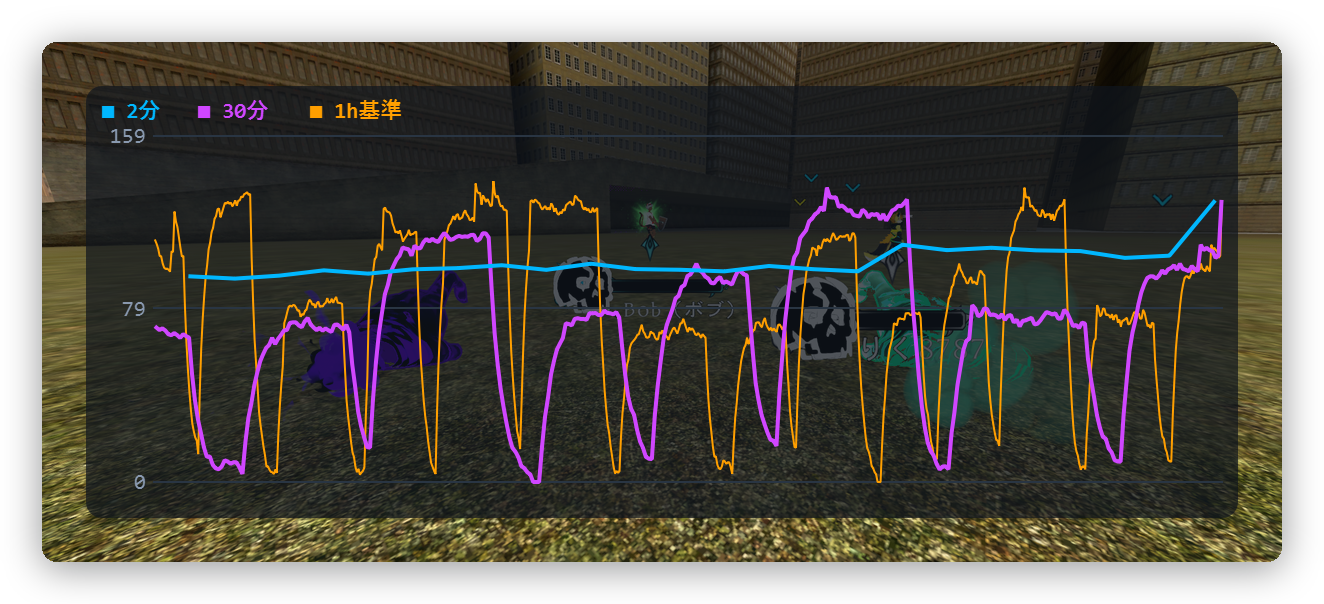
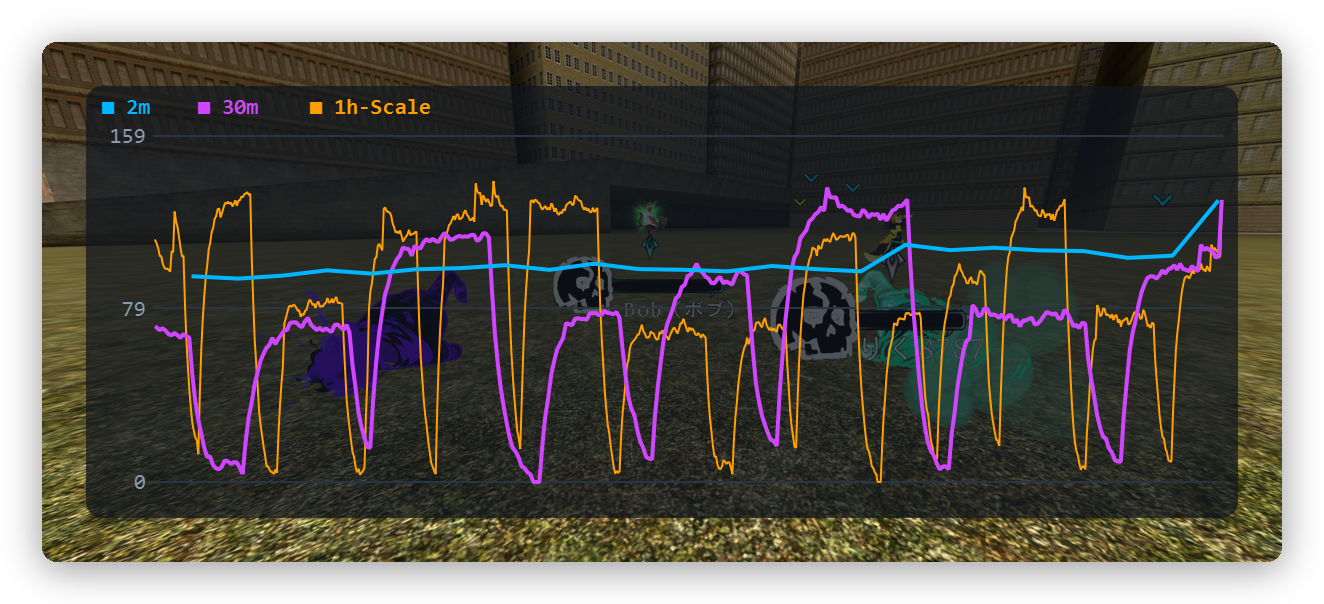
All three lines plot the same 10s DPS value; what differs is the time scale on the x-axis.
Line
Colour
Range
2m
Blue
Last 2 minutes — the pace of the fight you are in
30m
Purple
Last 30 minutes — the shape of the session
1h base
Orange
The current run's elapsed time (auto-scaled, 1 hour minimum, 4 hours maximum)
The numbers on the left are the y-axis, scaled automatically from the highest value across the
three lines. One sample is recorded per second. The troughs are intermissions and other stretches
where you are not dealing damage.
The 2m and 30m lines use all data since the app started (spanning runs); the 1h base line uses
only the current run.
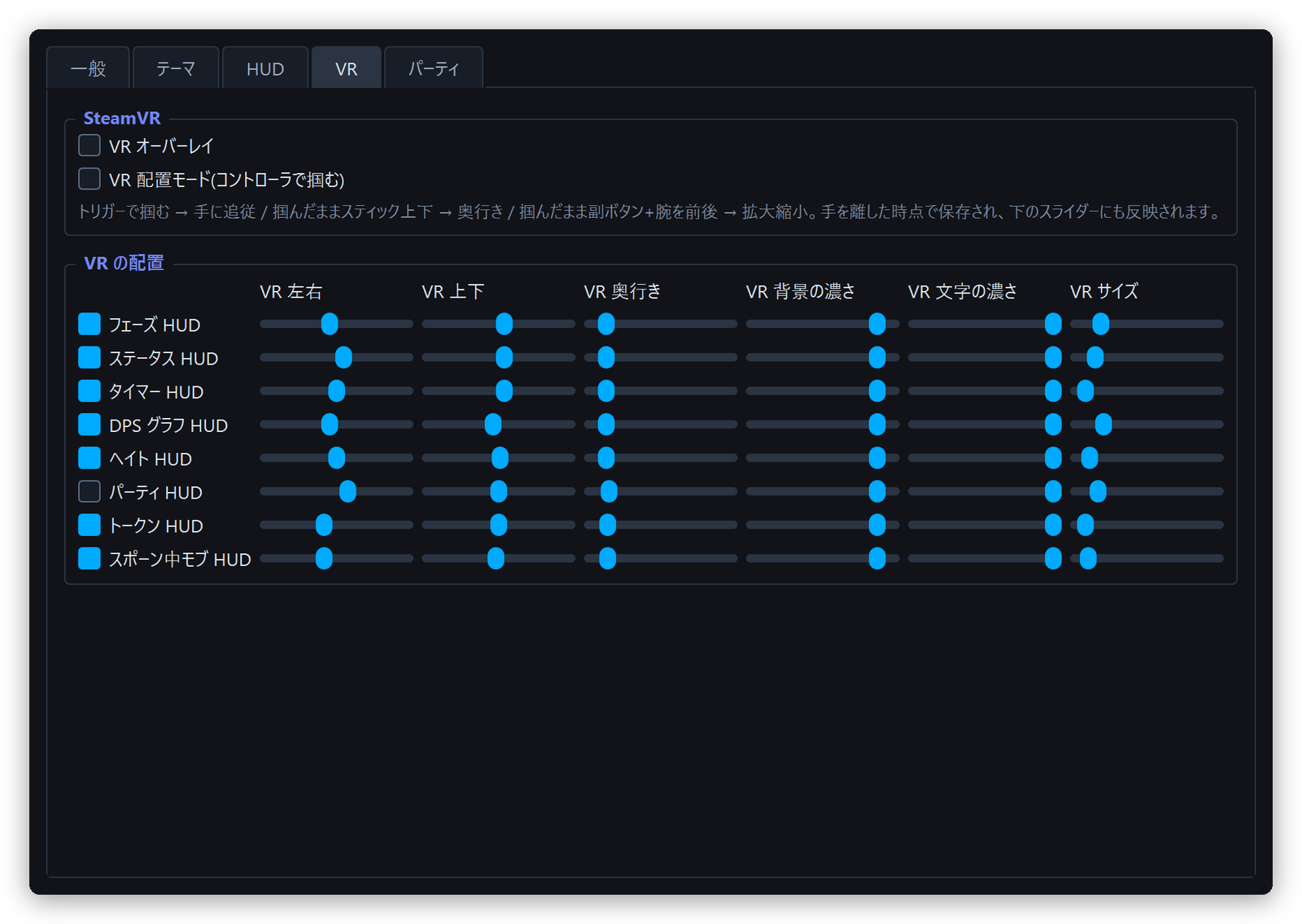
The desktop HUD windows are invisible inside a headset, so the same panels can be drawn as
SteamVR overlays instead. They stay fixed in your view, and each one is placed and dimmed
independently.
Requirements: VRChat has to be running through SteamVR (OpenVR), and SteamVR itself has to be
running.
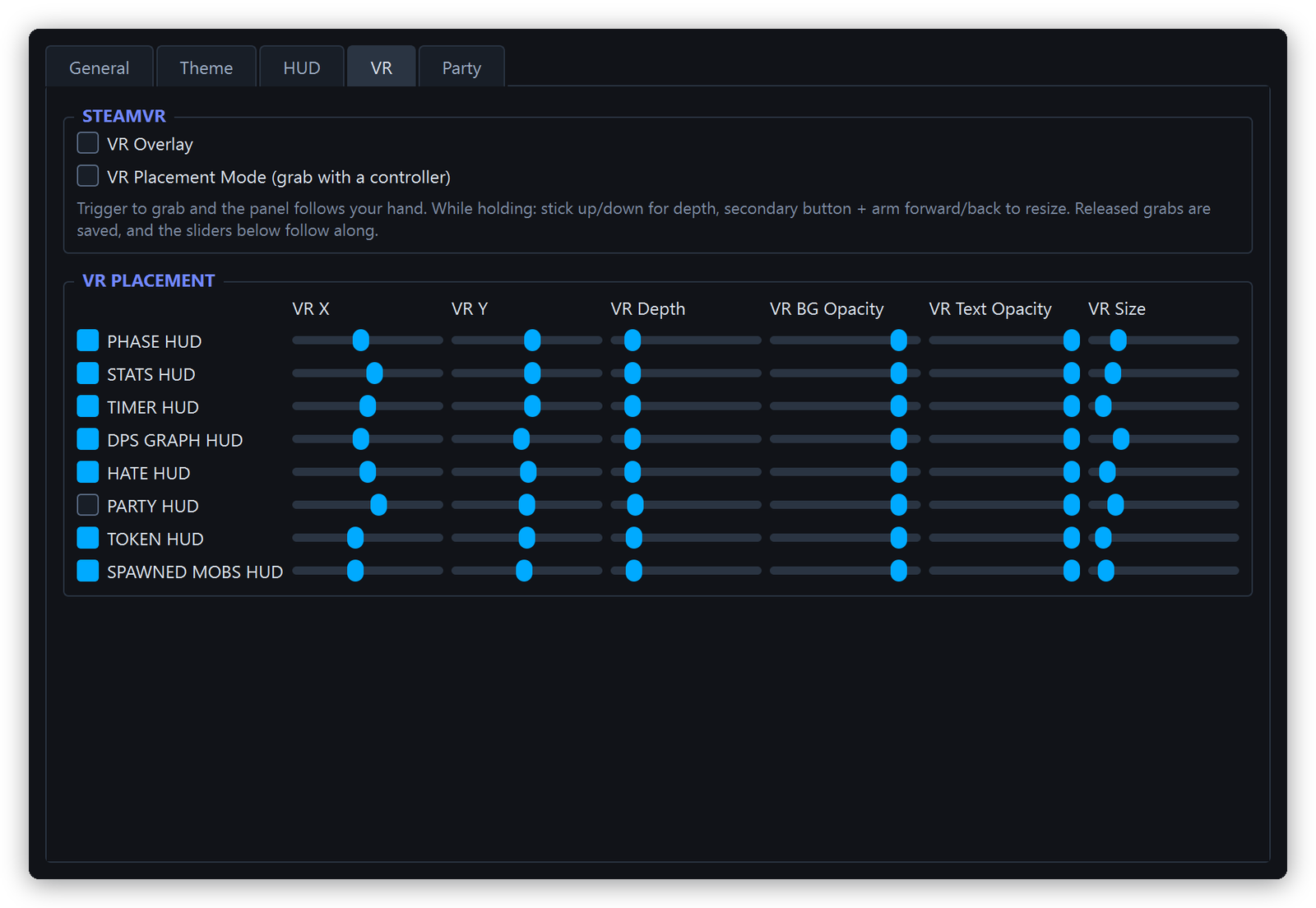
Settings window — VR tab
Open the settings window's VR tab and tick [VR Overlay]
Tick the panels you want in the headset. This column is separate from the desktop checkboxes
on the HUD tab, so you can keep the graph on your monitor and show only the timer in VR
Place them with your controller (below)
The toggle is patient. If SteamVR is not running yet, leave [VR Overlay] ticked — the overlays
appear by themselves once SteamVR starts. The same applies if you quit and restart SteamVR.
[VR Placement Mode (grab with a controller)] lets you arrange the panels without taking the
headset off.
Tick [VR Placement Mode] on the VR tab
Point at a panel and pull the trigger — the panel now rides that hand
While holding, push the stick up or down to send it further away or pull it closer
While holding, add the secondary button and move your arm forward or back to resize it
Let go. The position is saved
Turn placement mode off when you are done. It is off by default and not remembered between
launches, because an interactive overlay competes with VRChat for your controller. While it is on,
VRChat sees you as AFK and may lose trigger, grip and locomotion (buttons the app does not
use, like A/B/X/Y, keep working). Unticking placement mode restores both.
If controller placement will not work on your setup, the sliders on the VR tab do the same job.
They also follow along after every grab, so you can use them to fine-tune afterwards.
Slider
Range
VR X / VR Y
Left–right and up–down, ±5 m from your view
VR Depth
How far in front of you the panel sits, 0.3–7 m
VR BG Opacity
Background opacity, 0–100%
VR Text Opacity
Text opacity, 10–100%
VR Size
Panel width, 0.2–5 m (height follows the panel's proportions)
This feature is in a trial period. Party sharing is the only feature that goes through a
server, and it is currently offered free of charge on a trial basis. There is no set end date,
and it may change or stop without notice. Everything else in the app (tracking, HUD, export)
keeps working regardless.
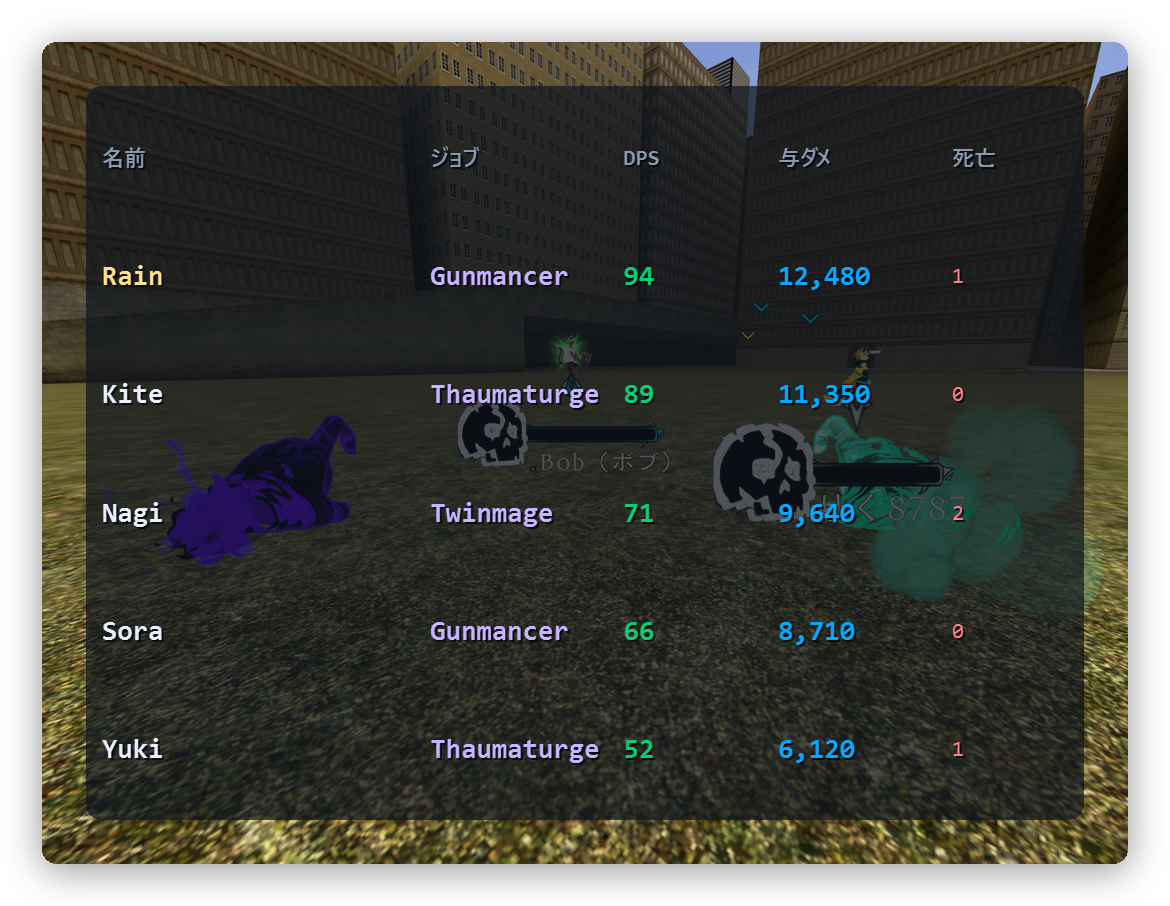
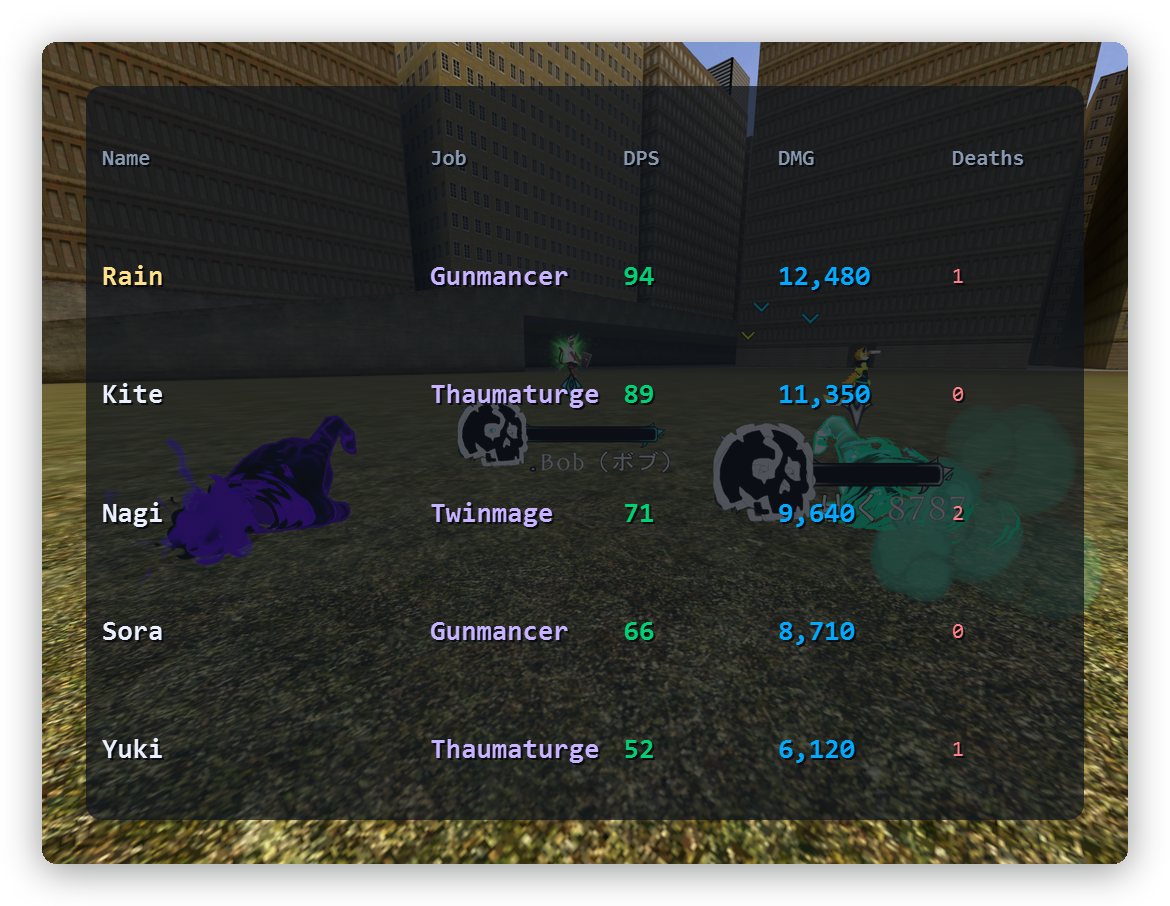
Everyone who types the same room ID shares their combat stats live. The Party HUD lists up to
ten people, sorted by damage dealt.
Party HUD — your own row is highlighted in yellow
How to use it
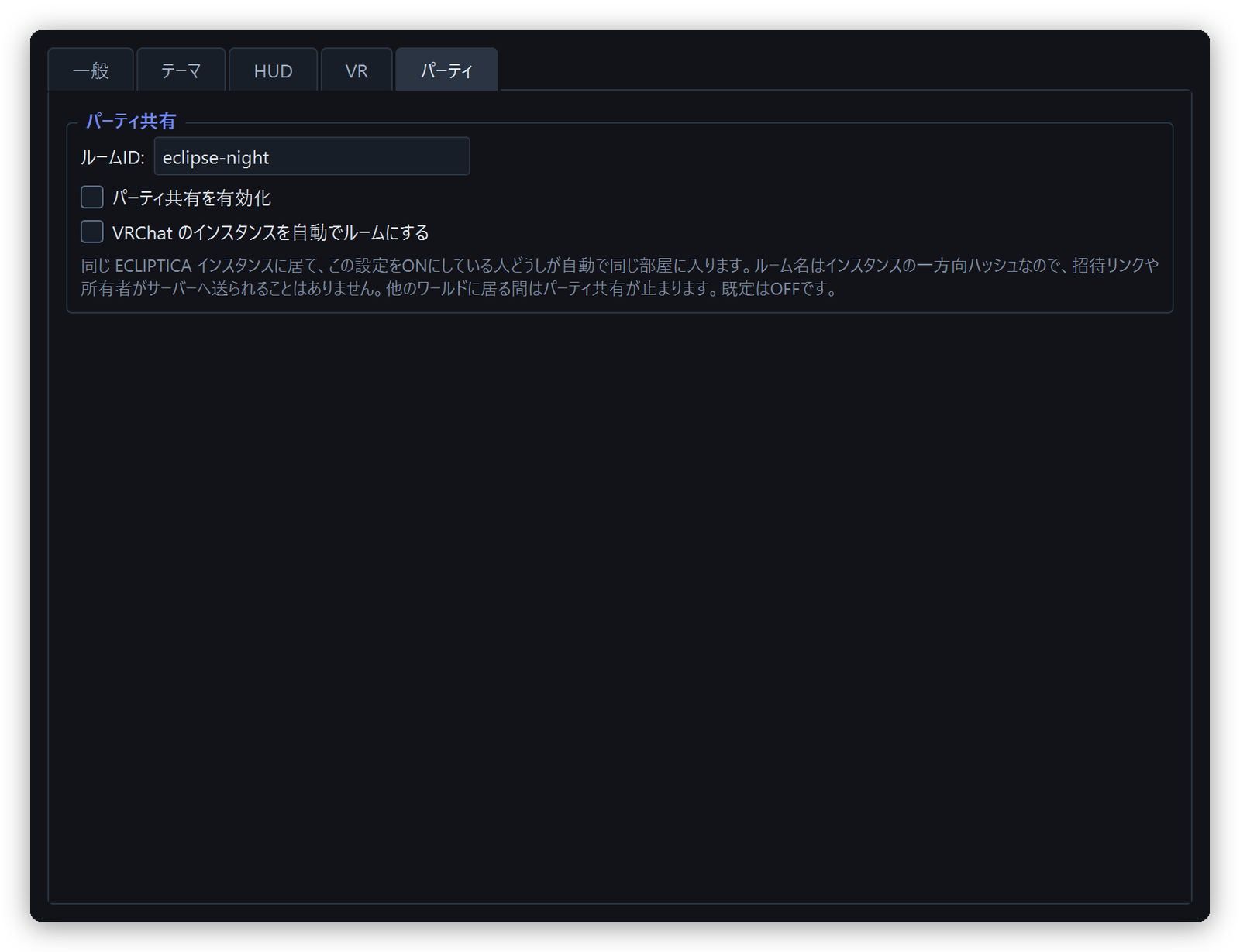
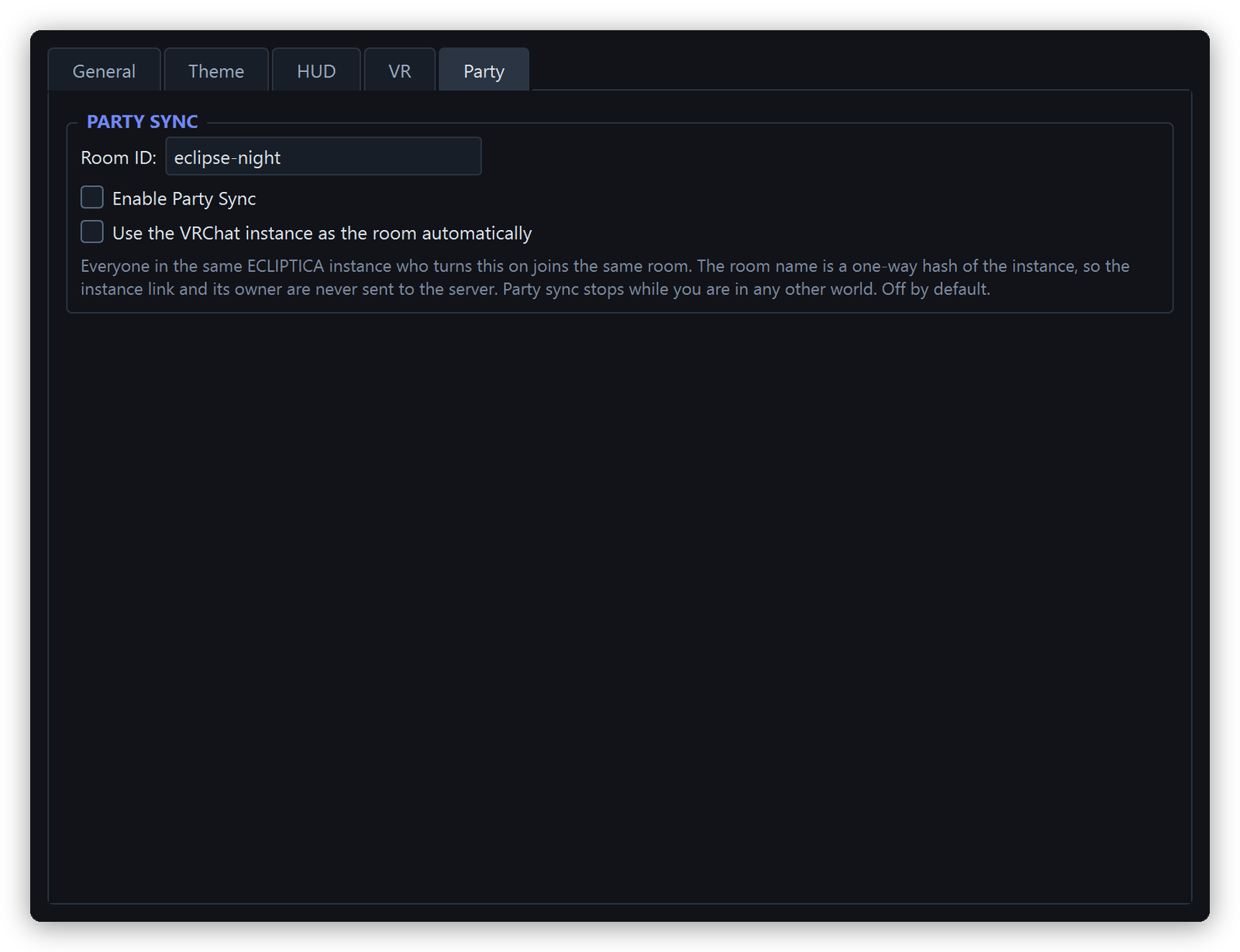
Settings window — Party tab
Type the phrase your group agreed on into [Room ID] on the settings window's Party tab
(ASCII is safest, e.g. eclipse-night)
Tick [Enable Party Sync]
Tick [PARTY HUD] under OVERLAYS on the HUD tab to show the panel (it is off by
default), and/or the same row on the VR tab to show it in the headset
Anyone using the same room ID appears in the list automatically
Your display name is whatever is in [Target user]. Edit that field if you want to show
something other than the auto-detected name.
Messages shown in the panel:
Message
State
Party sync is off
[Enable party sync] is unticked
Connecting to room...
Connecting to the server, or the room ID is empty
No members
Connected, but nobody else is using this room ID yet
Choosing a room ID
A room ID is a shared phrase, not a password. Anyone who types the same string joins the same
list. For a private group, pick something distinctive — common words like test or vrchat will
collide with strangers.
Every time you return to the lobby, the app writes that session out by itself. One
ecliptica_session_<timestamp>.jsonl file per session, no button to press, under:
%APPDATA%\dev.rtail\eact\sessions\
[Open Session Folder] on the settings window's General tab opens that folder.
A session runs from the first stage after a lobby to the next lobby. Quitting the app while a
session is in progress finalises it the same way.
A session in which nothing happened (walking back into the lobby, for instance) is not written, so
you do not accumulate empty files.
Nothing is uploaded anywhere. These are local files, and it is safe to delete them.
The format is the same JSONL as the manual export below; what differs is the slice of time each one
covers. A session record holds one lobby-to-lobby session, while the export holds
everything since the app was started.
The meta line carries everything the app knew at that moment: run totals, the per-stage breakdown
(including one entry per fight), growth against the phase-0 baseline, boss names, the aggro table,
the token summary, the mob lists, and what identifies the session itself.
So that records can be matched up later, a session record also carries:
A session key (instance.session_key) — derived from the instance and ECLIPTICA's own session
ID. Everyone who was there derives the same value from their own log, so several people's
records can be tied together afterwards. The ingredients that identify a person — the instance
owner and any invite-link nonce — go through a hash, so the key cannot be turned back into
them.
Who was there (players) — the display names of everyone in the instance during the session,
with the times they joined and left, so mid-session joins and departures keep their timing. VRChat
user IDs (usr_…) are hashed before being written, so a record cannot be traced back to a
profile. If the app was started after you had already joined the instance, players.tracked is
false and the count should be read as a lower bound.
Party members (party) — if party sharing was connected, each member's run totals at the end
of the session (damage, DPS, damage taken, deaths). The log only ever carries your own damage, so this is the
one route by which anyone else's numbers appear.
The world version (instance.world) — on entering the world the app asks
VRChat's public API for the world's version once, and
records it, noting when it differs from the last one seen. World updates change numbers and boss
behaviour, so this is what makes an old record comparable. The request is read-only and sends
nothing about you.
[Export Run JSON] on the settings window's General tab writes every event since the app
started as JSONL (.jsonl — one JSON object per line), wherever you choose.
Line 1 — meta: format version, app name and version, export time, target user, the log being
watched, run totals, per-stage breakdown, growth, boss names, the aggro table, and the token and
mob summaries
Line 2 onwards — one timestamped event per line. t is Unix time in seconds, type is the
kind of event
Event types are run_reset, stage, combat, damage, taken, death, boss_defeated,
hate, dps_sample and lobby, plus the instance-side instance_join, player_join,
player_leave, ecliptica_session and world_version. Debounced events (see the death /
boss-defeat entries under Troubleshooting) are recorded once.
taken events split the source into the enemy (source_enemy) and the ability
(source_ability), and meta.taken_by_source holds the roll-up per ability (hits, total, largest).
death events carry the hit just before them as killed_by_enemy / killed_by_ability, together
with seconds_since_last_taken so an unrelated hit is not mistaken for the killing blow. The
outgoing-damage lines carry no ability name, so a per-ability breakdown is only possible for damage
taken.
damage events carry a kind: STRIKE is a direct hit, NON-STRIKE is damage over time such as
poison or burn. run.strike_hits counts direct hits only, and is the denominator behind
Avg Per Hit and Growth vs phase 0; run.hits is kept next to it so the older
definition stays recomputable from the same file.
Events are never trimmed while the app runs, so long sessions produce large files.
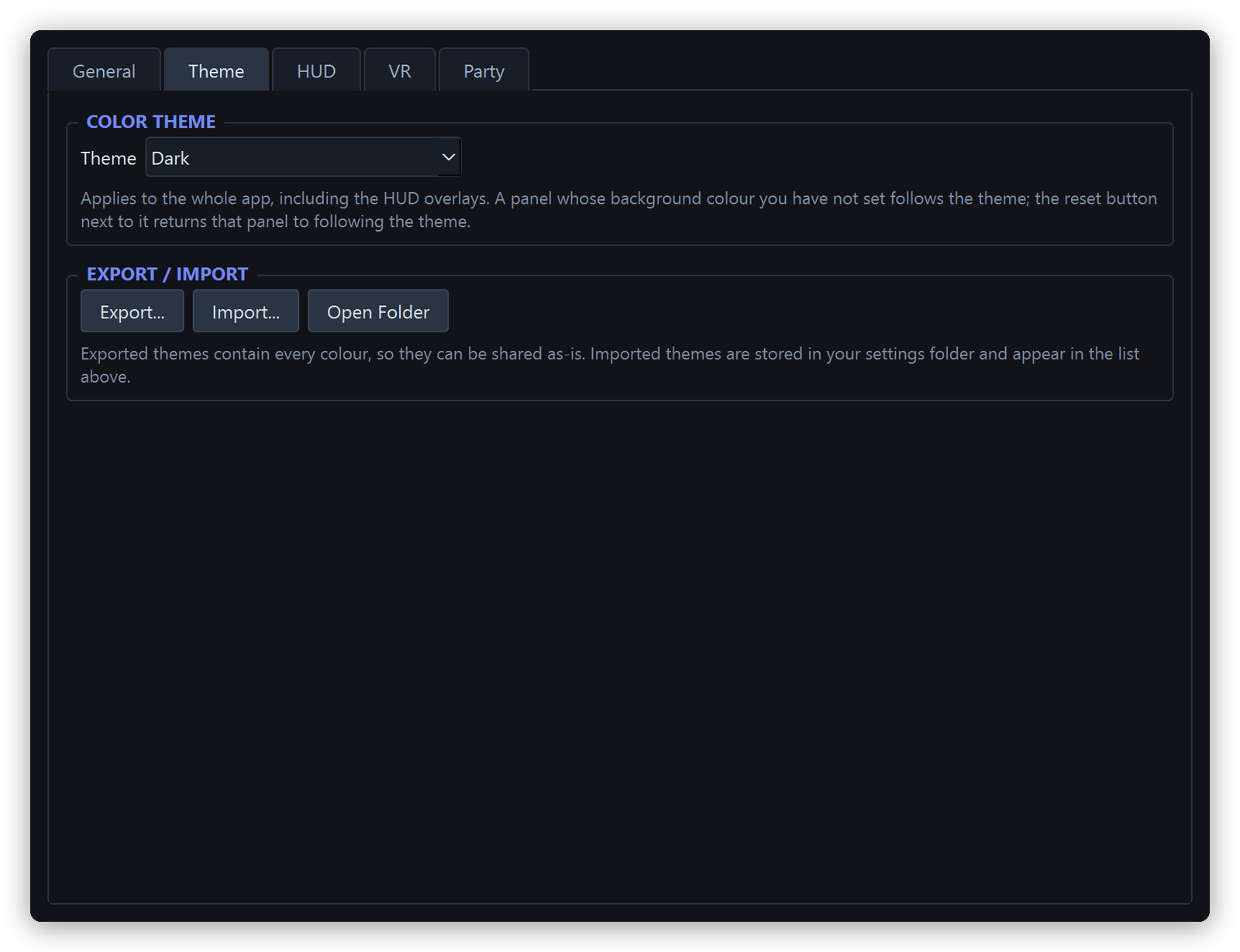
Reading it in Python:
import json

with open("ecliptica_run_2026-07-21_20-31-44.jsonl", encoding="utf-8") as f:
    meta = json.loads(f.readline())
    events = [json.loads(line) for line in f]

damage = [e for e in events if e["type"] == "damage"]
print(meta["run"]["damage"], len(damage))
About automatic session compression.
Session records pile up at a few MB per day, so left alone they approach a few hundred MB in a year.
[Compress last month's session logs automatically] (on by default) bundles records from
previous months into one sessions\archive\ecliptica_sessions_<year-month>.tar.zst per month.
Compression runs in the background, so the app never freezes.
The current month is left alone, since more records may still be added to it.
The originals are deleted only after the archive is complete. If it fails part-way, the originals
stay where they are.
Reading one needs a tool such as 7-Zip. The app never reads archives back.
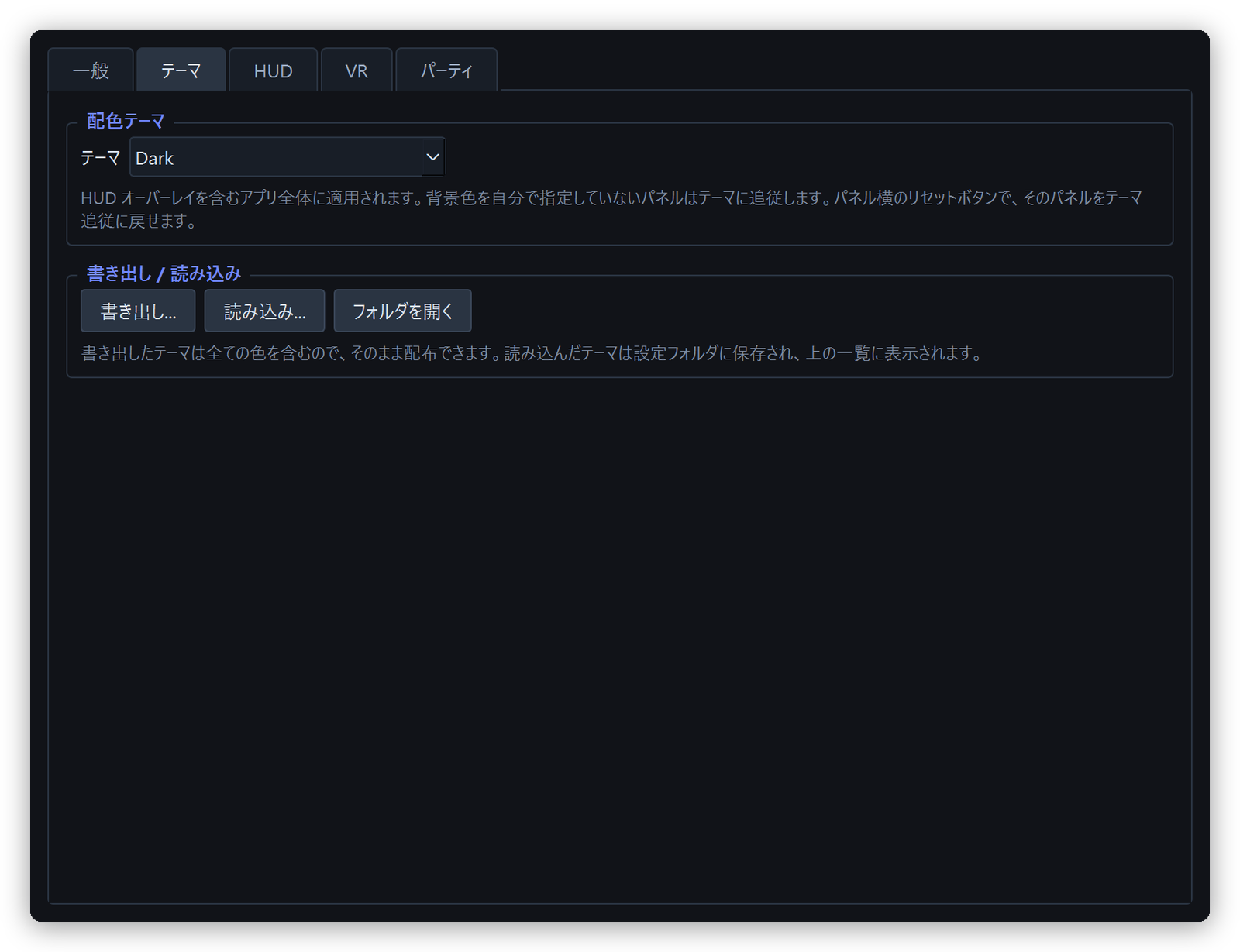
Theme
Settings window — Theme tab
Switches the colours of the whole app, including the HUD overlays.
Setting
Meaning
Theme
Dark (default) / Light / High Contrast, plus any theme you imported
Export...
Writes the current colours to a JSON file. It contains every colour, so it can be shared as-is
Import...
Takes in a theme file someone shared. Imported themes appear in the list
Open Folder
Opens where imported themes are kept (settings\themes\)
A panel whose background colour you have not set follows the theme. Setting a panel's
background colour on the HUD tab takes that panel out of the theme; the reset button next to it
puts it back.
If an imported theme contains unusable entries, only those entries are ignored and the rest is
applied — one typo should not waste a hand-written theme.
Dark is what every other theme falls back to for anything it does not set, so it cannot be
overwritten.
To start over, use Reset All Settings in the settings window. It clears only settings\; your session
records are left alone, and the previous settings are kept as .bck.
Bundles everything a bug report needs into one file. There are two ways to make one.
After a crash (automatic). If the app closes unexpectedly, a report window appears. It shows what
happened and collects the data in the background. Restart puts you straight back in the game.
Whenever you like (manual).Create Report Dump in the settings window — for when nothing crashed
but something is behaving oddly.
The result is crashes\eact-crashlog-<timestamp>.eactdump, a tar compressed with zstd (7-Zip and similar
tools open it).
Nothing is ever sent anywhere. The file is only written to your machine; handing it over is your call
every time.
What is inside:
Contents
Notes
The VRChat log (that session's log, in full)
Unmodified, so it contains the display names of everyone in the instance
Settings files
app_settings.json, hud_layout.json, any imported themes
Does Watching: output_log_....txt appear at the top right? If not, no log was found — start
VRChat first, then restart the app.
Is VRChat's own log level turned up, and are the launch options set?
See VRChat setup; several things stay empty without them.
On launch the app reads back as far as the latest session in the instance you are in.
Anything older than that never shows up.
"VRChat log folder not found" on startup
%USERPROFILE%\AppData\LocalLow\VRChat\VRChat does not exist. Either VRChat has never been run, or
it is installed on another drive. Launch VRChat once so the log is created, then start the app again.
The HUD does not appear over VRChat
Are you running VRChat fullscreen? Add -screen-fullscreen 0 for windowed (or borderless).
Check that both [Enable HUD Windows] and the panel's checkbox under OVERLAYS on the HUD
tab are ticked.
The Party HUD is off by default.
The Token HUD draws nothing unless tokens have been left on the field — that is normal
(HUD overlays).
In VR, the desktop HUD is invisible by design. Use the VR tab instead
(VR overlays); its checkboxes are separate from the desktop ones, so a panel you see on the
monitor is not necessarily enabled for the headset.
The HUD is swallowing my clicks
[Setup Mode] is still on. Untick it to restore click-through.
The overlays do not show up in my headset
Is [VR Overlay] ticked on the VR tab, and is the panel ticked in that tab's own column?
Is SteamVR running, and is VRChat running through it? The overlay needs OpenVR — a desktop-mode
VRChat has no headset to draw into. You can leave the checkbox on; it connects by itself once
SteamVR starts.
Is the panel simply out of view? Put VR X / VR Y back near the middle of their range and VR Depth
at about 1 m, which brings it straight in front of you.
VRChat went AFK, or lost trigger / grip / walking
[VR Placement Mode] is still on. Untick it and both come back — an interactive overlay has to
take the controller to be grabbable. If A/B/X/Y still work while trigger, grip and walking do not,
this is what happened (Placing panels from inside the headset).
Grabbing an overlay does nothing, or the wrong hand picks it up
How much controller input SteamVR hands to an overlay while VRChat is running varies between setups.
Point at the panel so the laser is visibly on it before pulling the trigger — the hand holding the
laser is the one that picks the panel up.
If a grab never registers, try a different button. Every button except the resize modifier counts
as a grab.
That just means you have not dealt damage in the last 10 seconds — it is a 10-second sum divided by
10, so it decays to zero once you stop. Use "Run damage" for the cumulative figure.
Death counts look wrong / boss defeat fires repeatedly
ECLIPTICA reports deaths and boss defeats repeatedly, so the app collapses a burst into a single
event. As a side effect, two genuine deaths a few seconds apart count as one.
"Max critical" does not match the crits I saw
The log has no crit flag. The app shows the largest single hit of the run in its place
(Glossary).
Tokens Held shows -
You joined the run partway through. The balance is collected − spent, which cannot reconstruct the
real number when the world has handed out starting tokens the app never saw. Per-wave pickups and
misses are still accurate. Return to the lobby and start from phase 0 and the balance comes back
(Tokens).
"Growth vs Phase 0" stays at -
It needs a phase-0 baseline from this run, plus at least one landed hit. Joining a run that is
already underway means there is no baseline to compare against, so the card stays - until the next
run starts from phase 0 (Growth vs phase 0).
A mob is listed as #48 instead of a name
That enemy's name is not known yet. It is shown by ID until the name turns up.
Is [Play a sound when a target locks onto you] ticked?
Is your name in [Target User] on the General tab? With it empty there is no way to tell who
was targeted, so nothing plays.
To hear it for trash mobs, tick [Include trash mobs] on the HUD tab. Bosses only is the
default.
Does [Test] play? If not, the problem is the file itself — the reason is shown right there in
the settings window (an unsupported format, say).
Check that Windows has not muted the app in its volume mixer.
Only I show up in the Party HUD, or nobody does
Is everyone using exactly the same room ID (case and punctuation included)?
Has everyone ticked [Enable Party Sync]?
If it stays on "Connecting to room...", your network (firewall or VPN) may be blocking wss://.
My layout is not saved
Press [Save Layout] after moving or resizing (it is also saved when you close the app).
The app crashed
A report window appears by itself and tells you what happened. While it is up it gathers everything needed
to diagnose the problem into a single file, so use [Save Report...] to put it somewhere you can find it
and attach it to your bug report. [Restart] puts you straight back in the game — you do not have to wait
for the collection to finish.
Nothing is ever sent anywhere. Handing the file over is your call every time. See
Report dumps for exactly what goes in it.
If nothing crashed but something looks wrong, Create Report Dump in the settings window produces the
same file on demand.
"Ecliptica ACT is already running"
Only one copy can run at a time. Look for the existing window in the taskbar; if there isn't one, end
Ecliptica ACT.exe in Task Manager and start it again.
"Please start this app from Ecliptica ACT.exe"
You launched the exe inside the assets folder. Start Ecliptica ACT.exe in the folder above it
instead — launched directly, a crash would go unrecorded.
Something broke after I changed a setting
Reset All Settings in the settings window puts everything back to defaults. It only clears settings;
your session records are untouched, and the previous settings stay beside them as .bck.
Damage dealt in the last 10 seconds ÷ 10. A burst metric — it falls when you stop
Run avg DPS
Run damage ÷ run elapsed time. Travel and intermissions are in the denominator, so it is far lower than 10s DPS
Max critical
The largest single hit of the run — a stand-in, because the log has no crit flag
Run
From one phase-0 reset to the next. The unit that stats reset on (Phases and runs)
Stage
One ECLIPTICA stage. A run contains several
Checkpoint
One encounter within a stage (Mob / Boss / Rest) — what the third clock counts (The three clocks)
Session
From the first stage after a lobby to the next lobby. What session records cover (Session records)
Swing
One direct hit. Damage over time counts towards damage but not towards swings, which is what Avg Per Hit and Growth divide by (Growth vs phase 0)
Aggro
The player an enemy's network ownership was handed to, taken from the ownership-transfer log lines (work in progress — it does not always match the real target)
Phase
Whole-run progress from 0.0 to 1.0, displayed as five segments
These notices and the full license texts are also readable in the app itself, via the
[Licenses]button at the bottom right — it displays the bundled
THIRD-PARTY-NOTICES.md and licenses/ files verbatim.
The application includes the software listed below. Each remains the copyright of its
respective holders and is redistributed under its own license.
The Software uses Qt and Qt for Python under the terms of LGPL v3. Qt is bundled
unmodified and is included as dynamically linked DLLs inside the executable, so you
may replace the bundled Qt DLLs with your own build of the same version and run the
Software against it.

![配置モードのパネル。右上に[位置][サイズ]、右下に操作ヒントが出る](assets/ja/hud-setup-mode.png)